
1. Open Matchable Manager
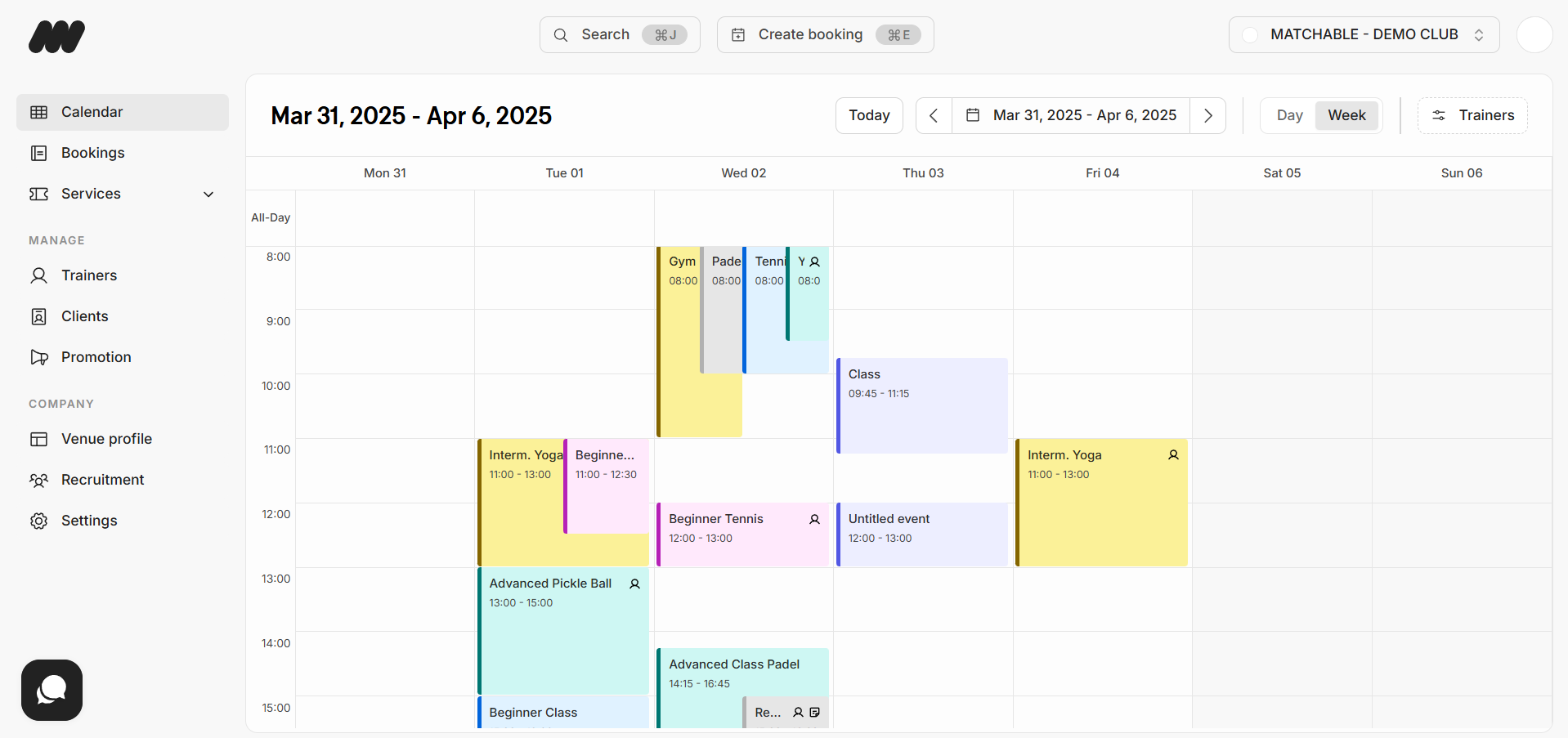
When you open Matchable Manager, you start on the Schedule.
Here you can see all trainings and classes for the day.
2. Switch to day view (optional)
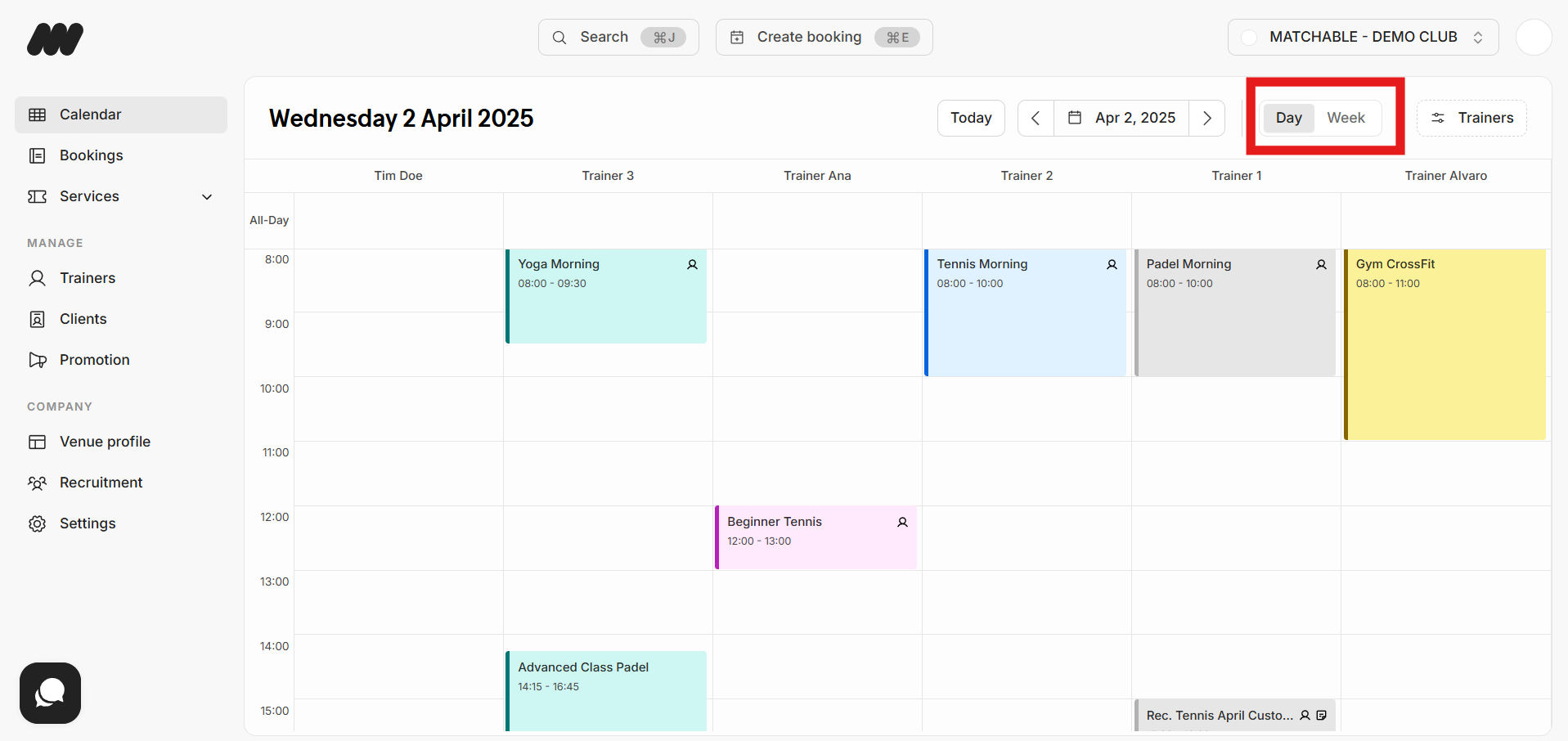
If multiple classes occur on the same day, click ‘Day View’ in the top-right corner.
This provides a clearer overview of your upcoming classes and trainings.
3. Quick booking overview
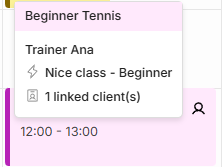
Hover over a booking to see a recap:
Trainer name
Type of training
Number of clients joined
Icons next to each booking:

= A client has joined the training or class

= Private note attached (click booking to view)
4. View booking details
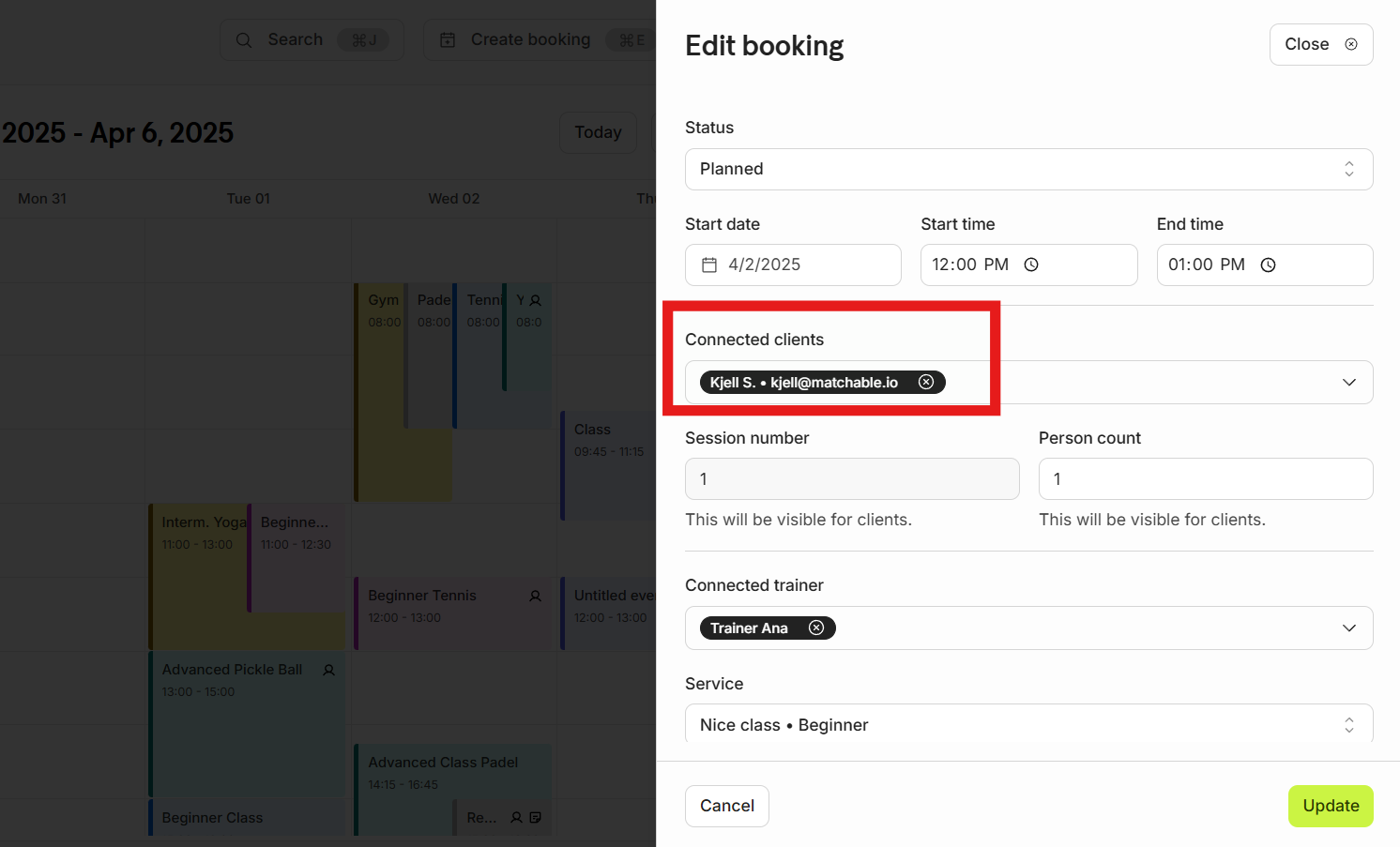
Click on a booking to see full details, including Connected Clients (clients signed up for the session).
Check the status at the top:
Planned
Unplanned
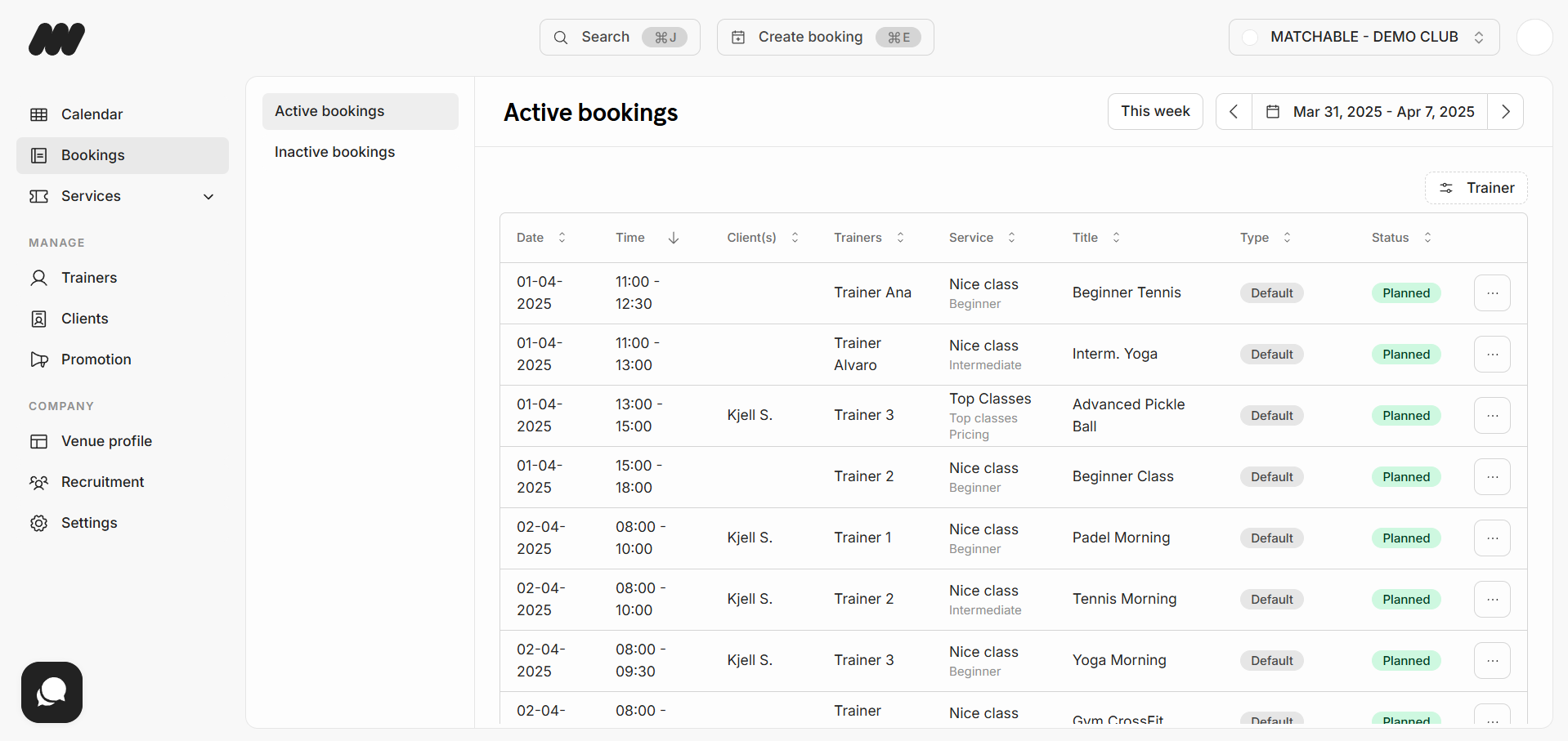
5. Access the bookings tab
On the left sidebar, click Bookings to see all trainings and classes in a list.
Use filters to refine your view:
Active or Inactive bookings (left side)
Navigate by week:
Use the arrows or click the displayed date to open the calendar (right side)
6. Search or create a booking
At the top of the Bookings tab, you can:
Search for players, trainers, or bookings
Create a new booking