All your course sessions show up in the Calendar alongside your other services. This gives you a full picture of your schedule. From here, you can view planned sessions, connected trainers or clients, and notes.
Each course session appears as a block on the calendar
The block shows the course name, time, and number of participants
Colors help distinguish between different trainers
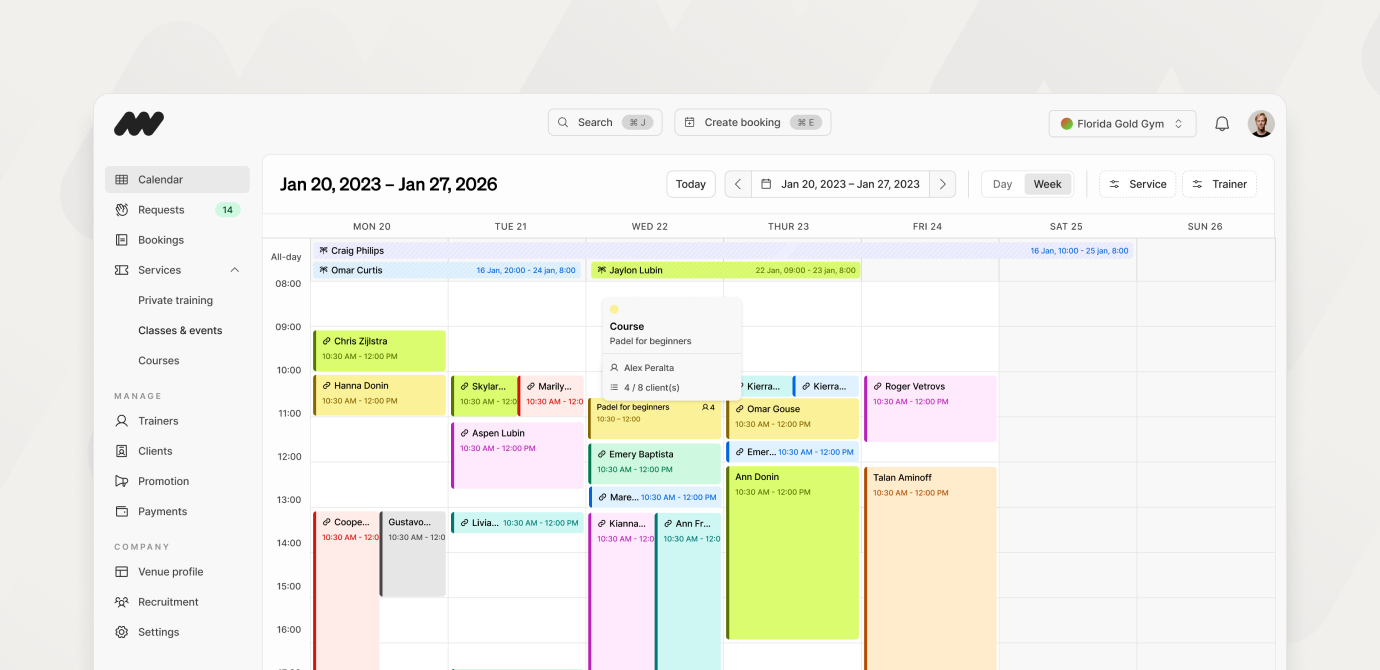
Filter tip: Only interested in your own sessions? Use the filter on the top right to select a specific trainer and only see their bookings.
Note: Don't worry about double bookings. If you have an active course session, you won't be bookable for private services during that time.
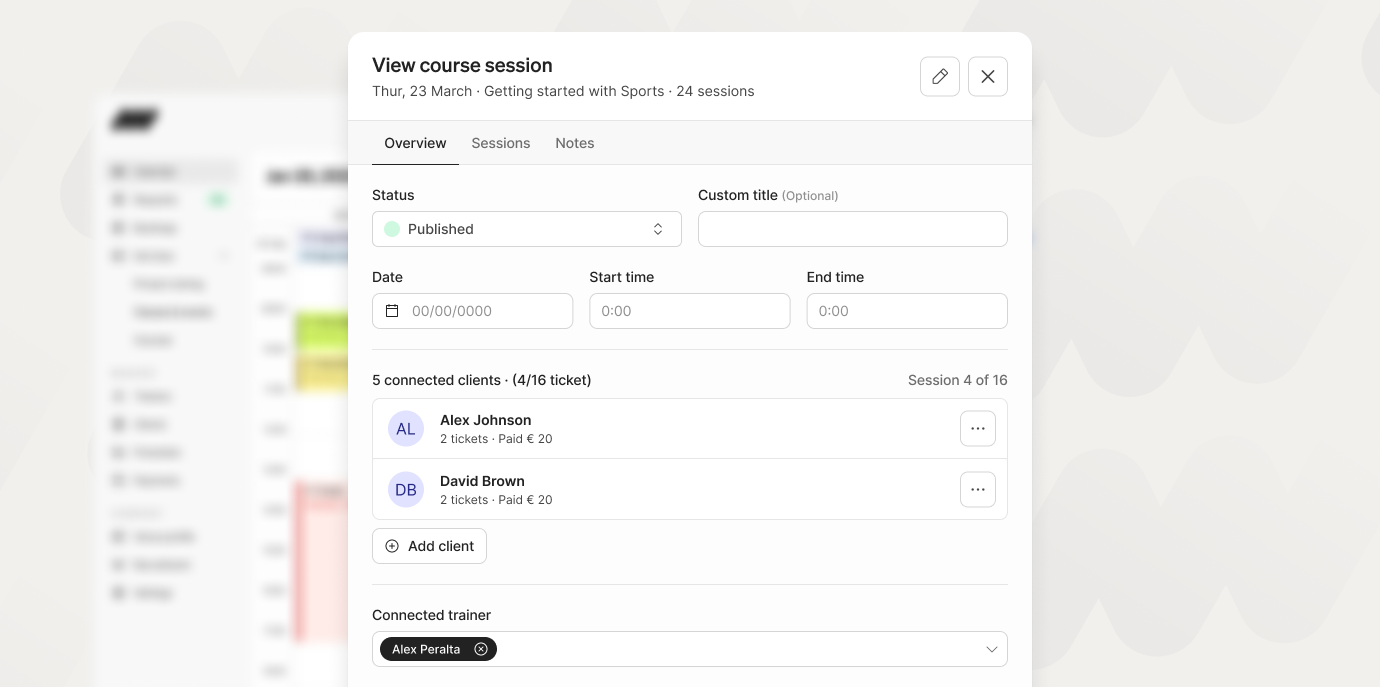
When you click on a course session, a booking drawer opens where you can see the details for that session. Here you can edit the time, clients, status, or trainer. You can also view the session number and how many sessions are left in the course.
You can make changes through the booking drawer, but for the complete overview, we'd advise you to go to the course settings. You get there by clicking the pencil icon on the top right.
Custom title If a session is themed or you need to add a note that clients can see, the custom title is a good option. Clients will see this in their upcoming bookings and can prepare ahead of time.
Clients The booking drawer gives you a quick overview of the clients joining the session. From here you can remove clients from a session, add clients, or view their profile.
Session tab In the session tab you can find all sessions of the course with their status. You can open a specific session and start editing from there. For more information on statuses, click here.
Notes tab Every booking in Matchable has a Notes tab. This is where you and other managers can add internal notes that won't be visible to clients.
Want to learn more about what each status means? Click here to view the full overview.

Click on the specific session and change the status. Once updated, the connected clients will be notified about the change. If you want to update more than one session, click "edit sessions" to go to the overview page of the course. From there, you can multi-select and make changes in one go.
Tip: Always add a note to the session so your colleagues stay up to date.
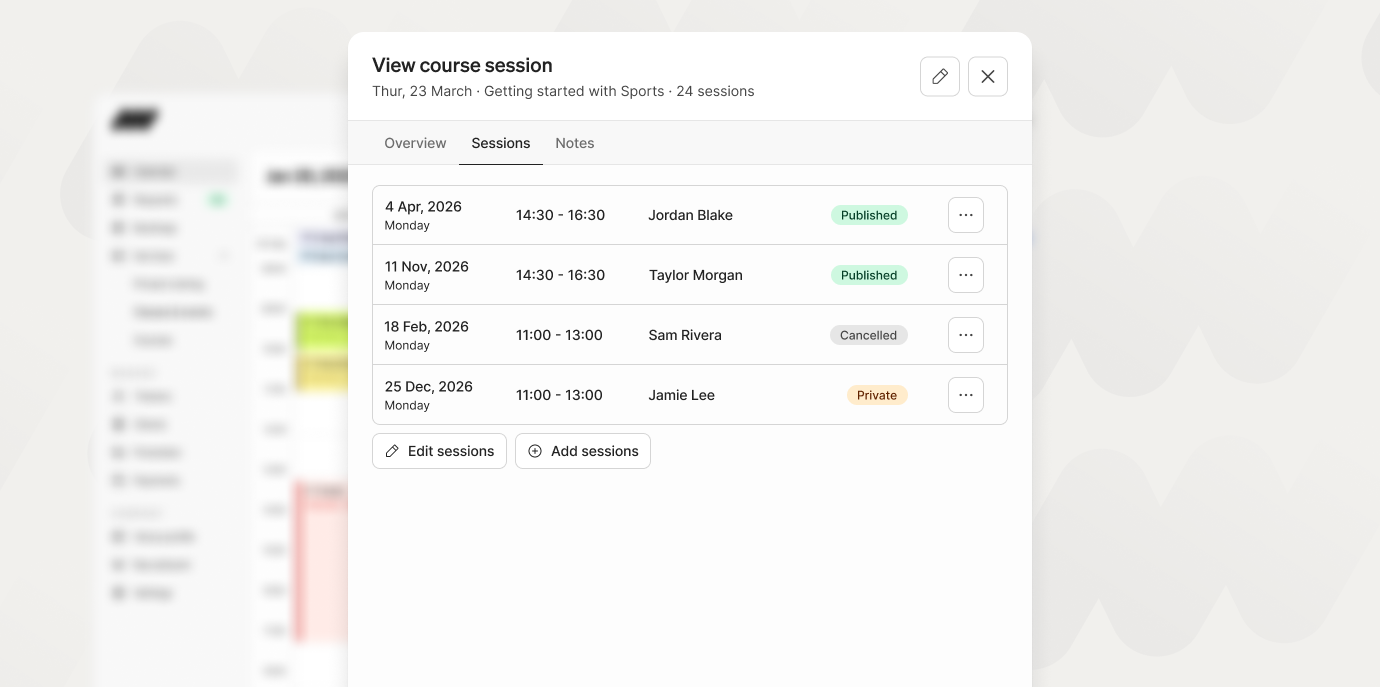
Click the "add session" button in the booking drawer, which will bring you to the overview page of the course. From there, click the "add session" action button and set up the new session.
Note: Recently joined clients don't automatically get added to new sessions you create.
You can edit the trainer in the booking drawer by using the trainer selector. If you want to change the trainer on all sessions, go to "edit sessions" where you can multi-select sessions and assign a trainer to them in one go.

