
Navigate to ‘Availability’.
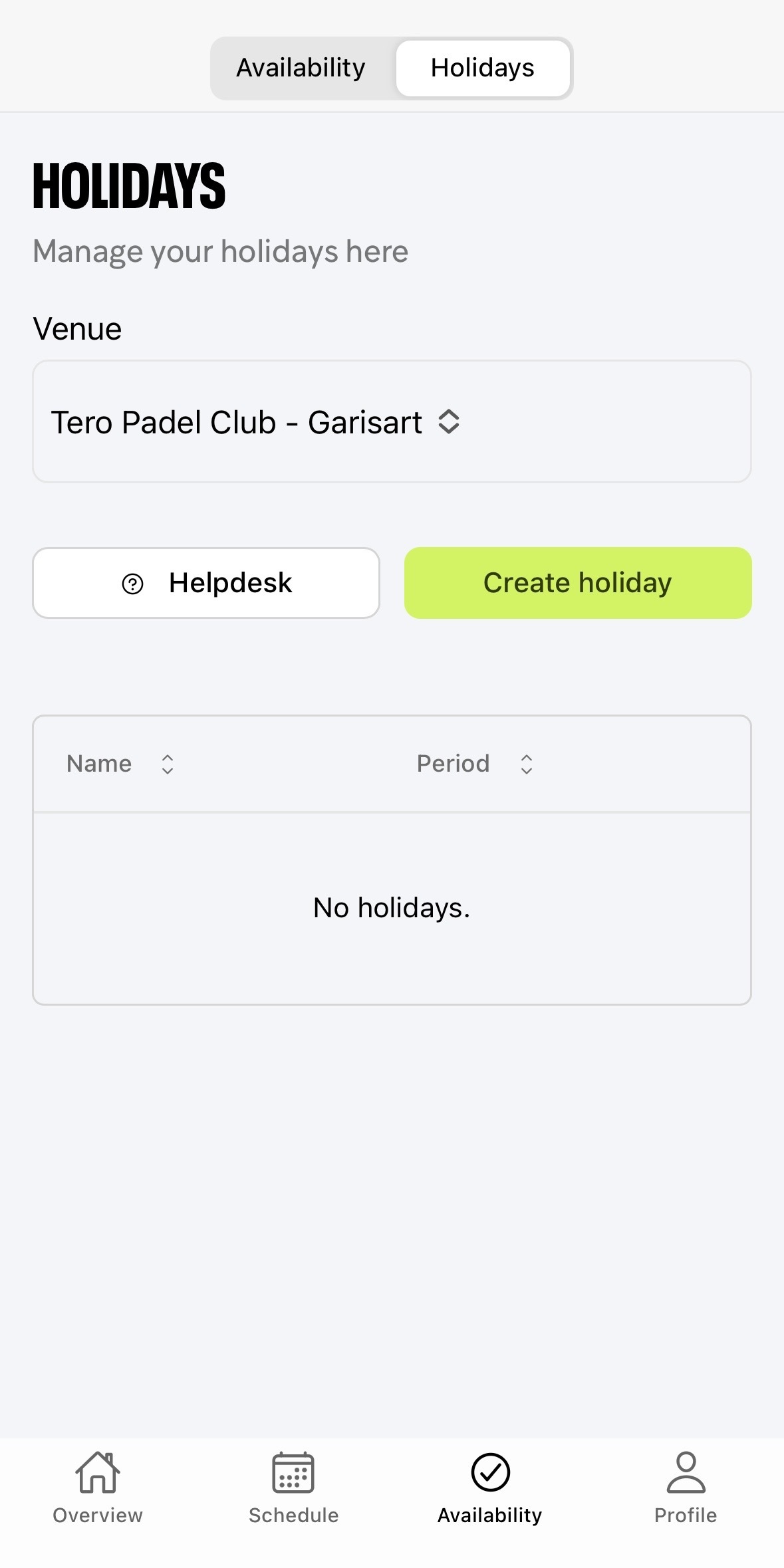
At the top of the screen, you’ll find the ‘Holidays’ section.
Create a Holiday
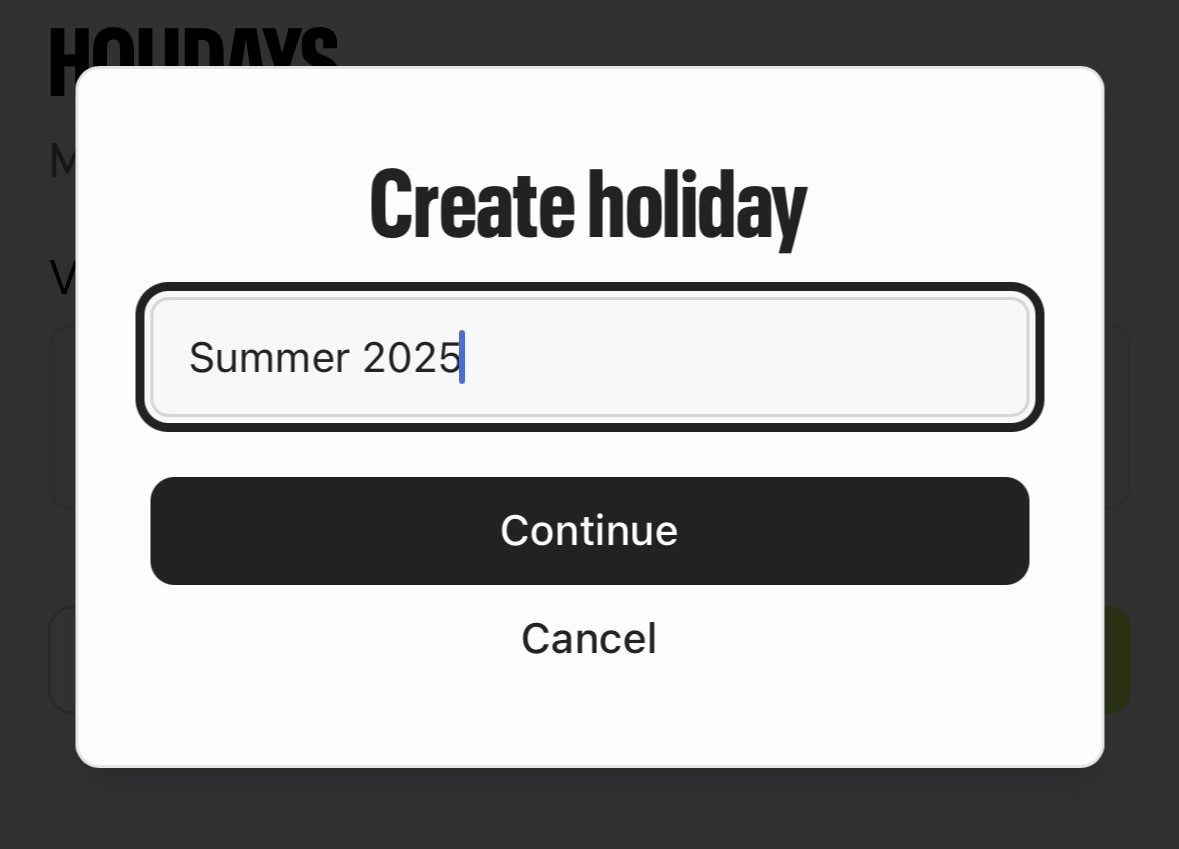
You can create a new holiday or manage an existing one by clicking on it.
Click ‘Create Holiday’.
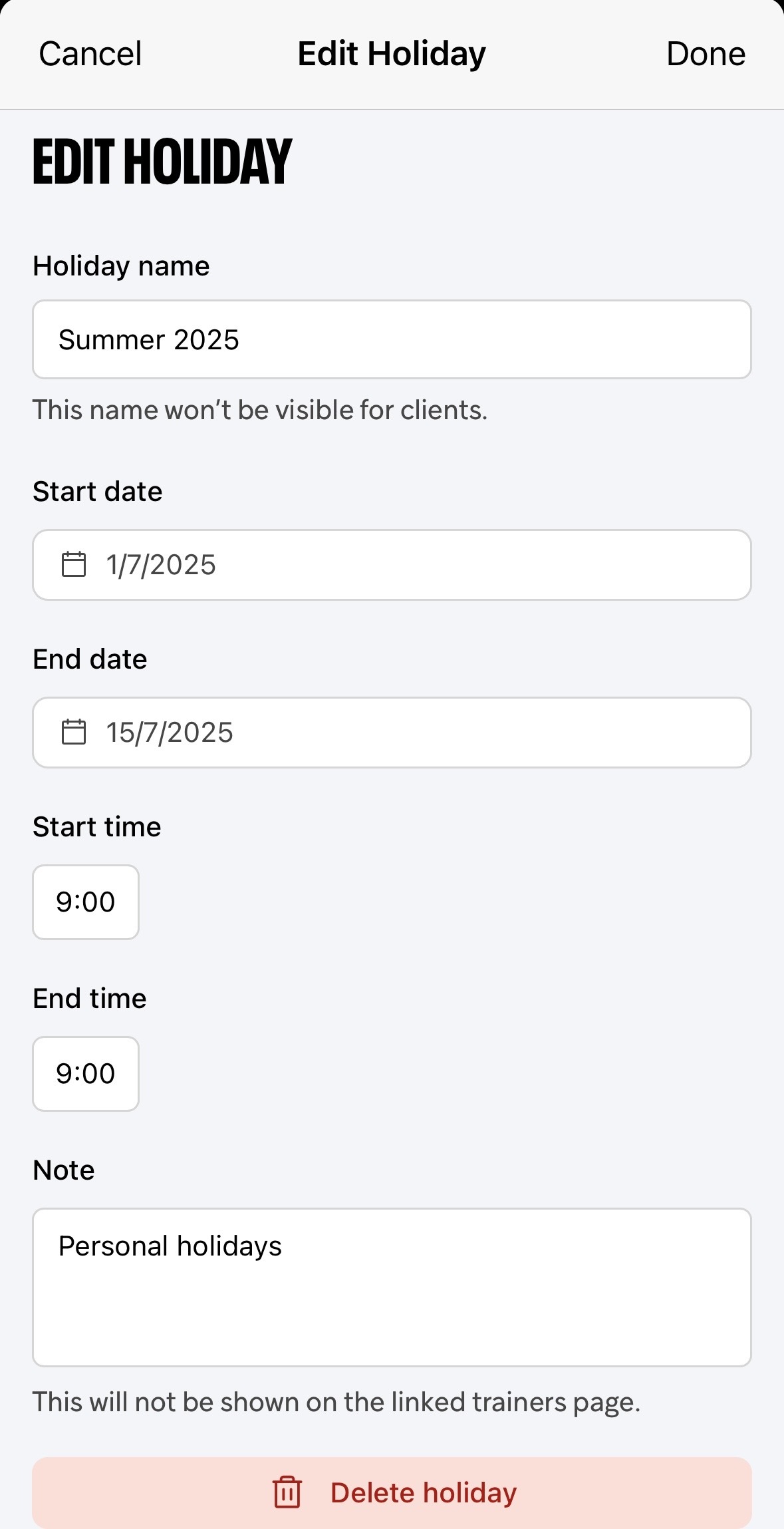
On the next screen, enter a title for your holiday.
Then, fill out all required details, including:
Start and end date
Start and end time
Notes (optional)
Once all fields are completed, click ‘Done’ in the top-right corner.
Your holiday will automatically override your current working schedule, and clients will be notified that you’re unavailable during this period.
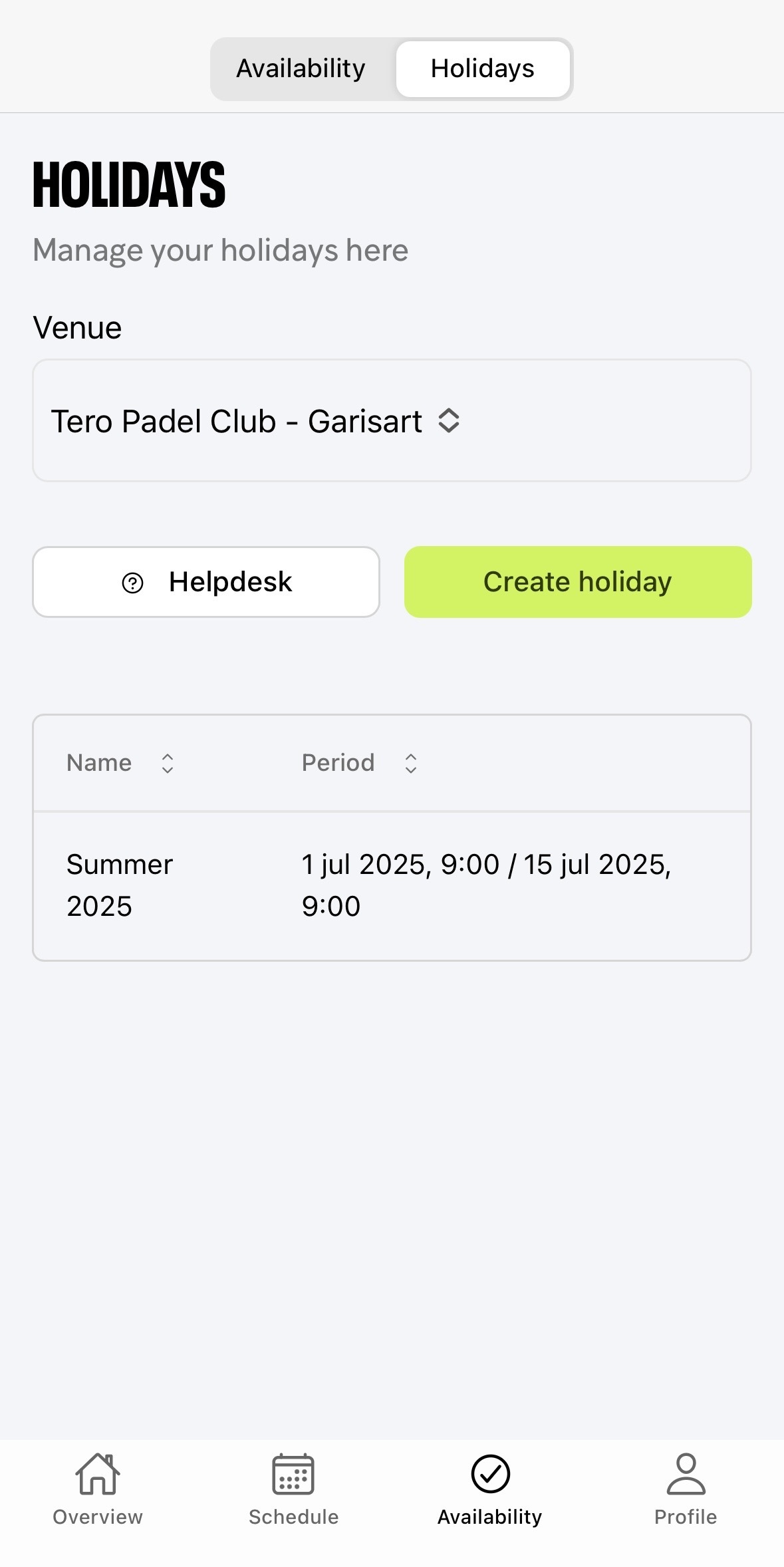
Manage Existing Holidays
To edit a holiday:
Click on the holiday in your overview.
The edit screen will appear, allowing you to make any changes you need.
Important: The holiday date can only be set in the future — past dates cannot be selected.
Watch the demo to learn how the Matchable Trainer App works: here.