
The Trainer app can be downloaded from the Apple App Store or Google Play Store. Whether you’re on the court or on the move, the Trainer App helps you keep track of your schedule and manage your trainings with ease.
Home Screen
When you open the Trainer App, you will find your schedule for the day, followed by reviews, connected venues, and several other buttons located in the footer of the screen.
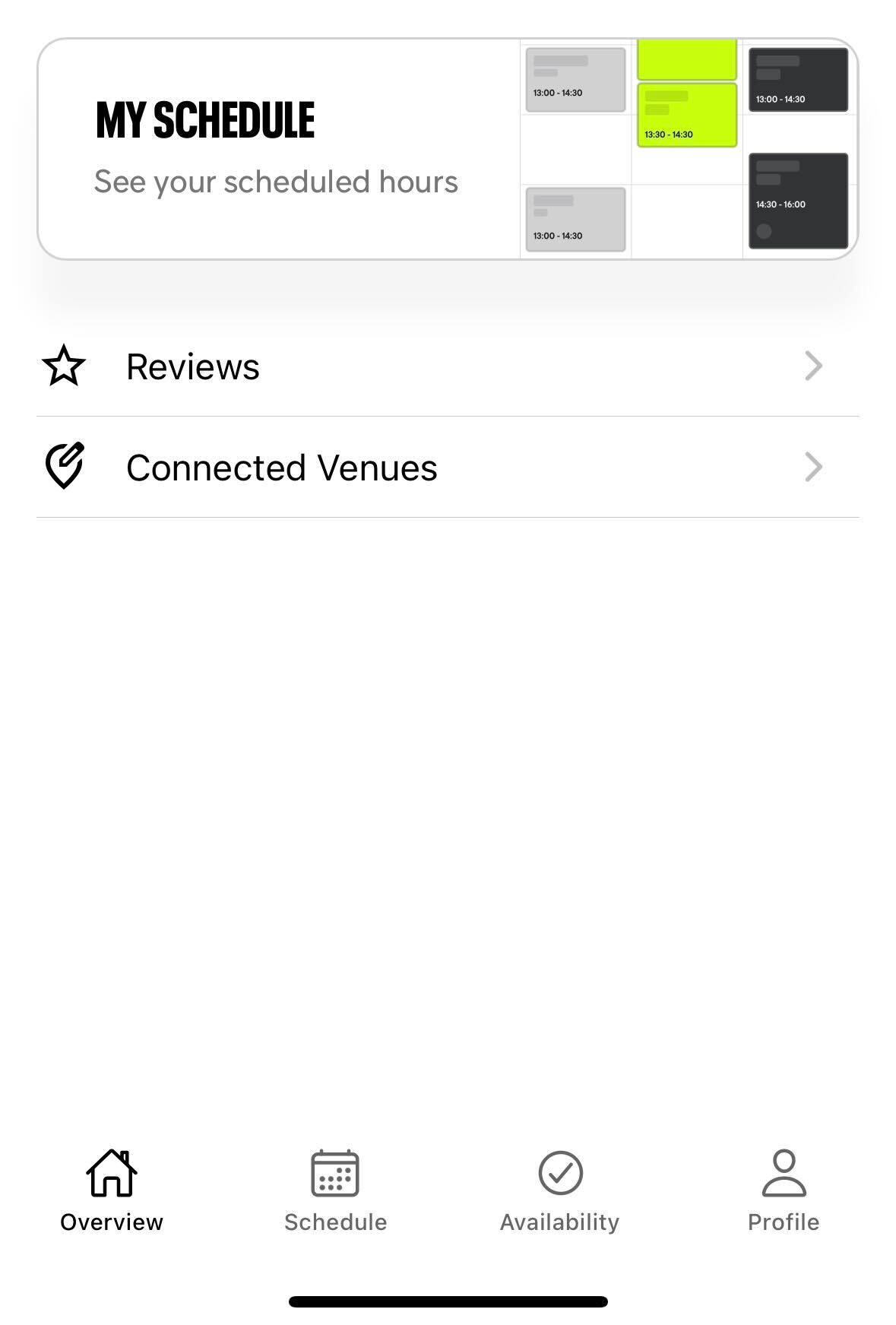.jpg)
Schedule
Here, you will have a clear overview of all your trainings. At the top of the screen, you can navigate to your preferred week. The schedule view is set to weekly by default.
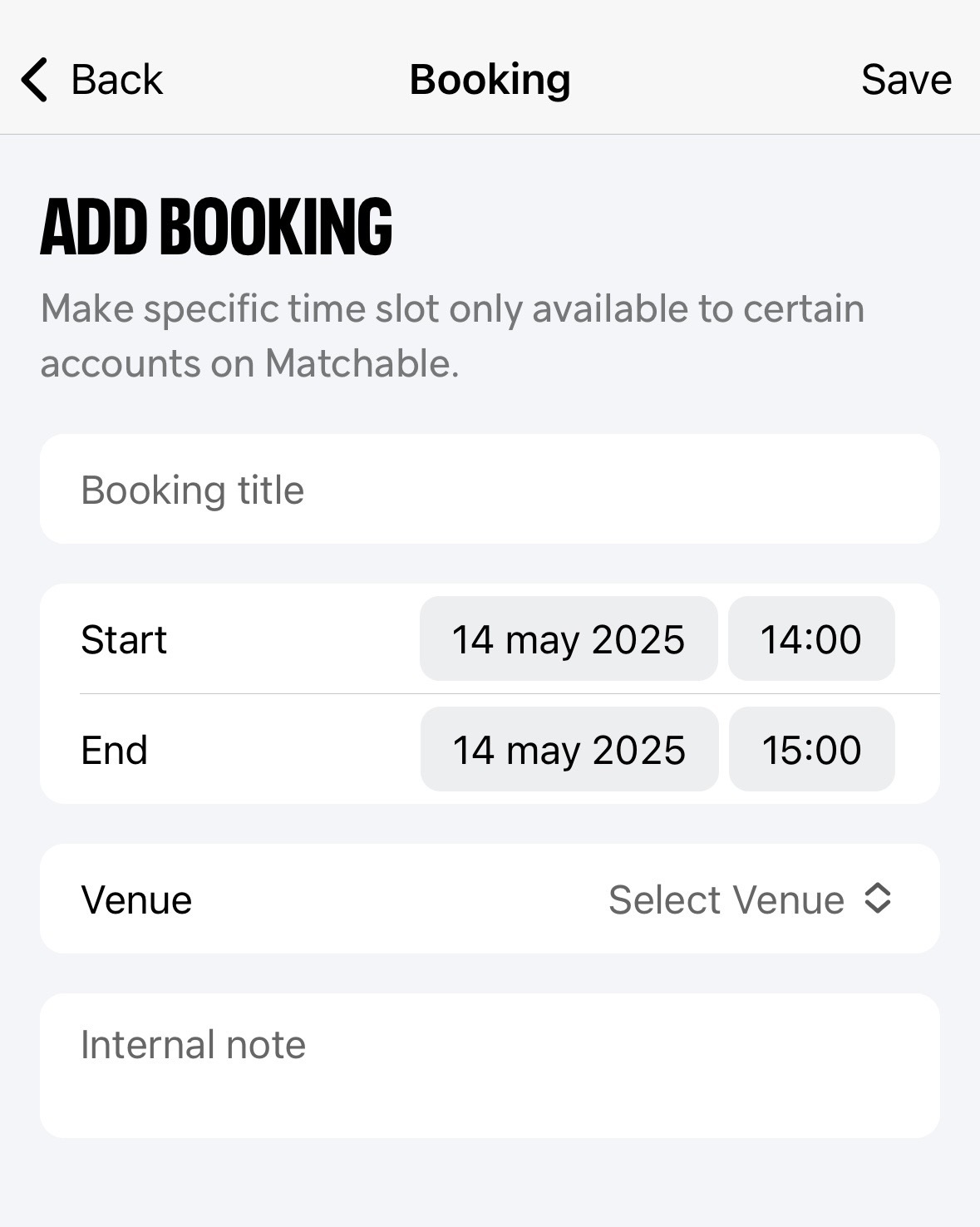
You can also create a training from this screen. To do so:
Click on the ‘Create’ button in the top-right corner.
Fill out all required fields.
Click ‘Save’.
Availability
In this section, you can create your own availability.
Click ‘Create Schedule’ or edit an existing schedule by clicking on it.
Fill out all required fields and select your working days.
By clicking the ‘+’ icon on the right, you can add additional working hours.
For example:
Monday: 08:00 – 12:00 and 15:00 – 18:00
Once everything is filled out, don’t forget to press the ‘Save’ button.
Profile
This is your personal profile.
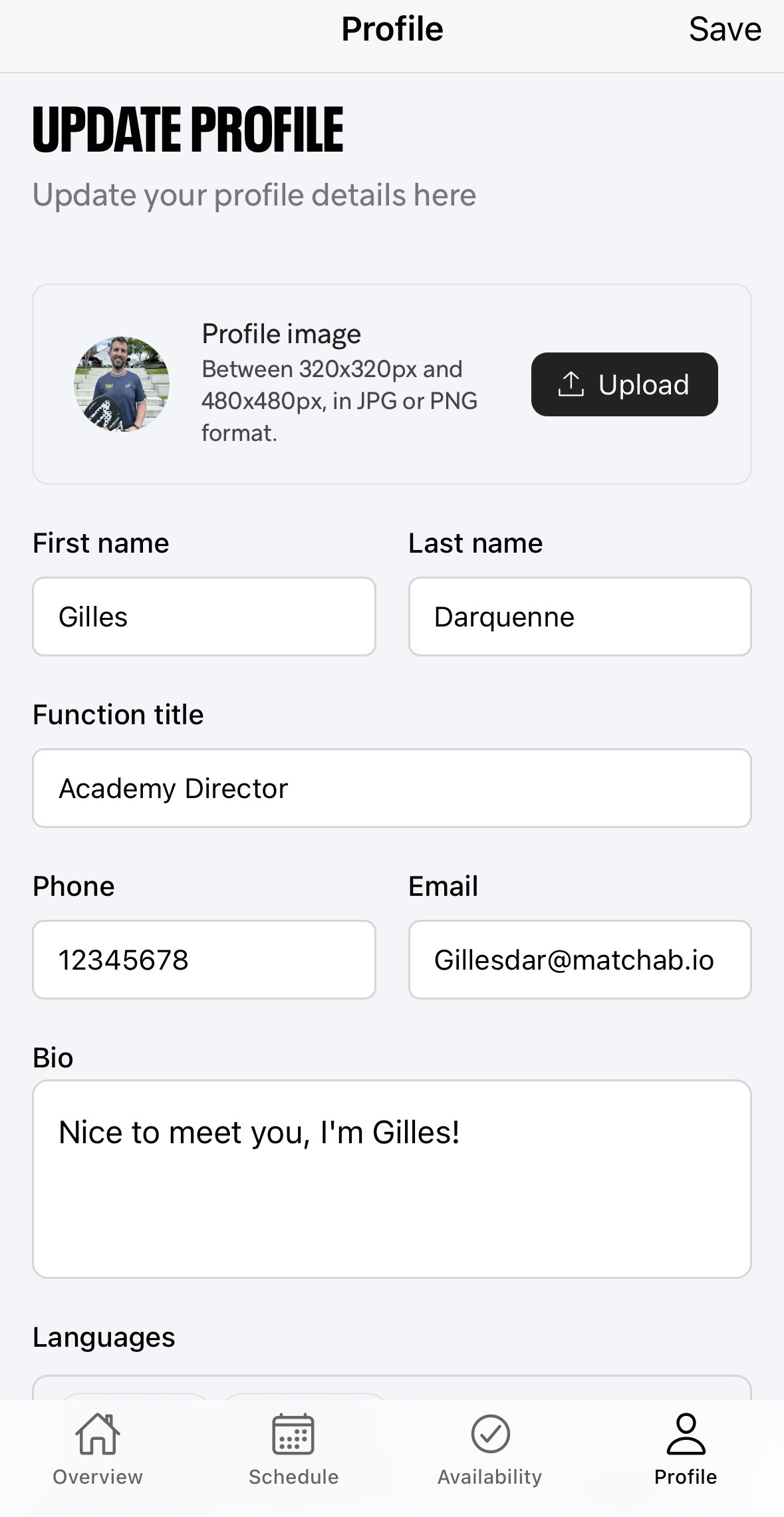
Here, you can add all details about yourself, such as:
Profile picture
First and last name
Contact details
Bio
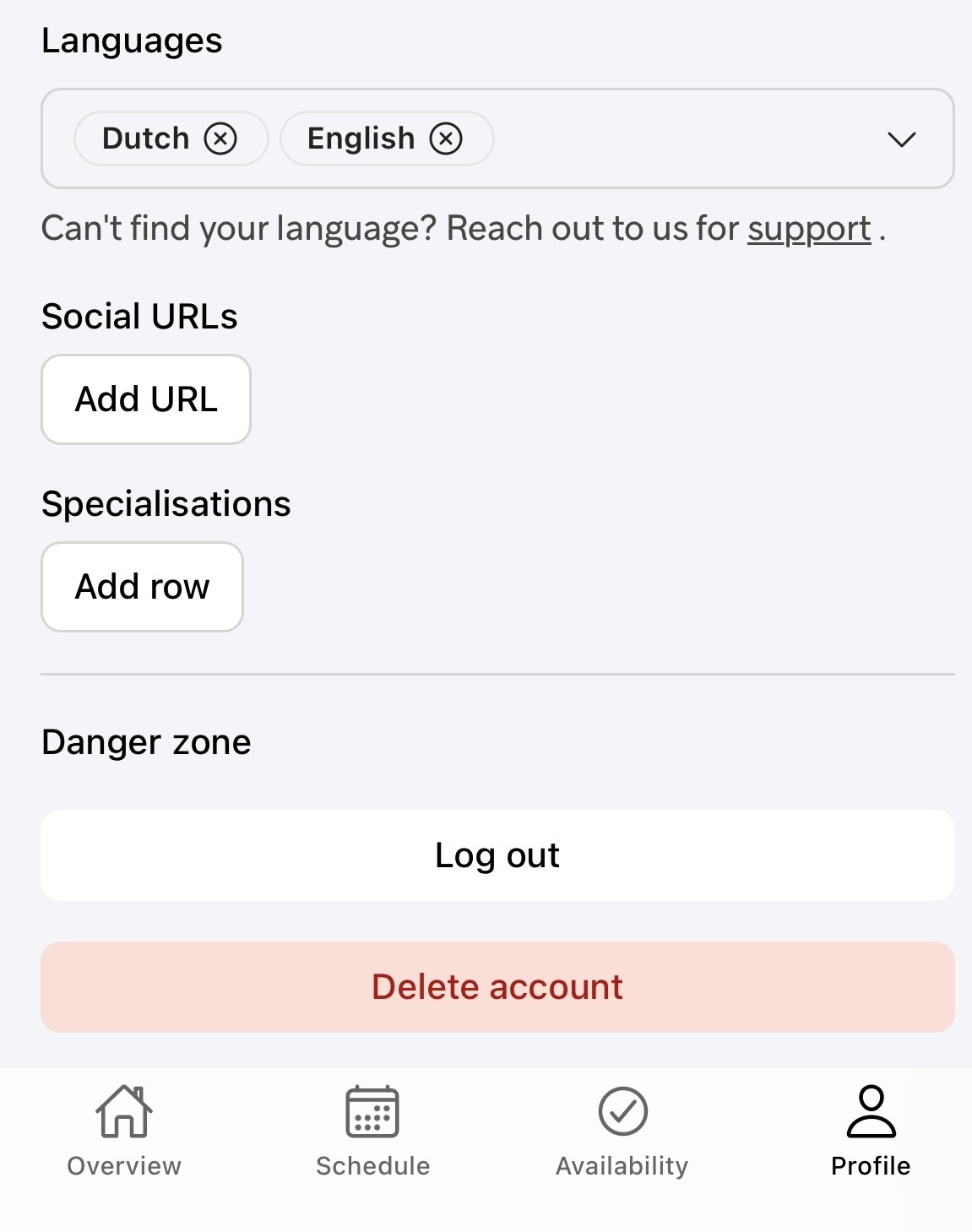
You can also add:
Languages you speak
Your specializations
Social URLS
Remember to scroll through the profile section to fill out all details and press ‘Save’ when you’re done.
Watch the demo to learn how the Matchable Trainer App works here.