Log in to Matchable Manager.
On the left sidebar, navigate to ‘Trainers’.
You will see an overview of all trainers.
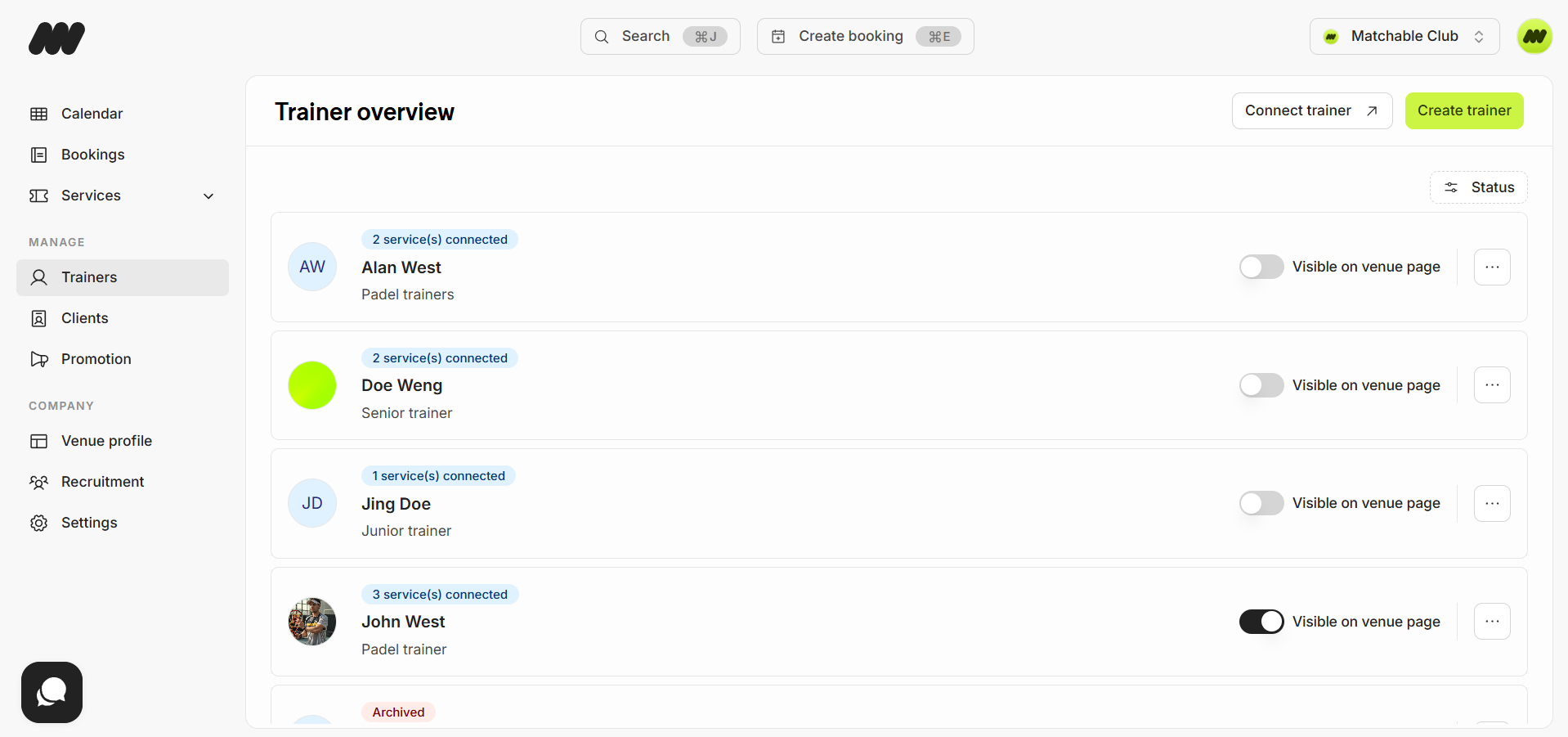
Options:
Click the Create trainer button in the top-right corner to add a new trainer.
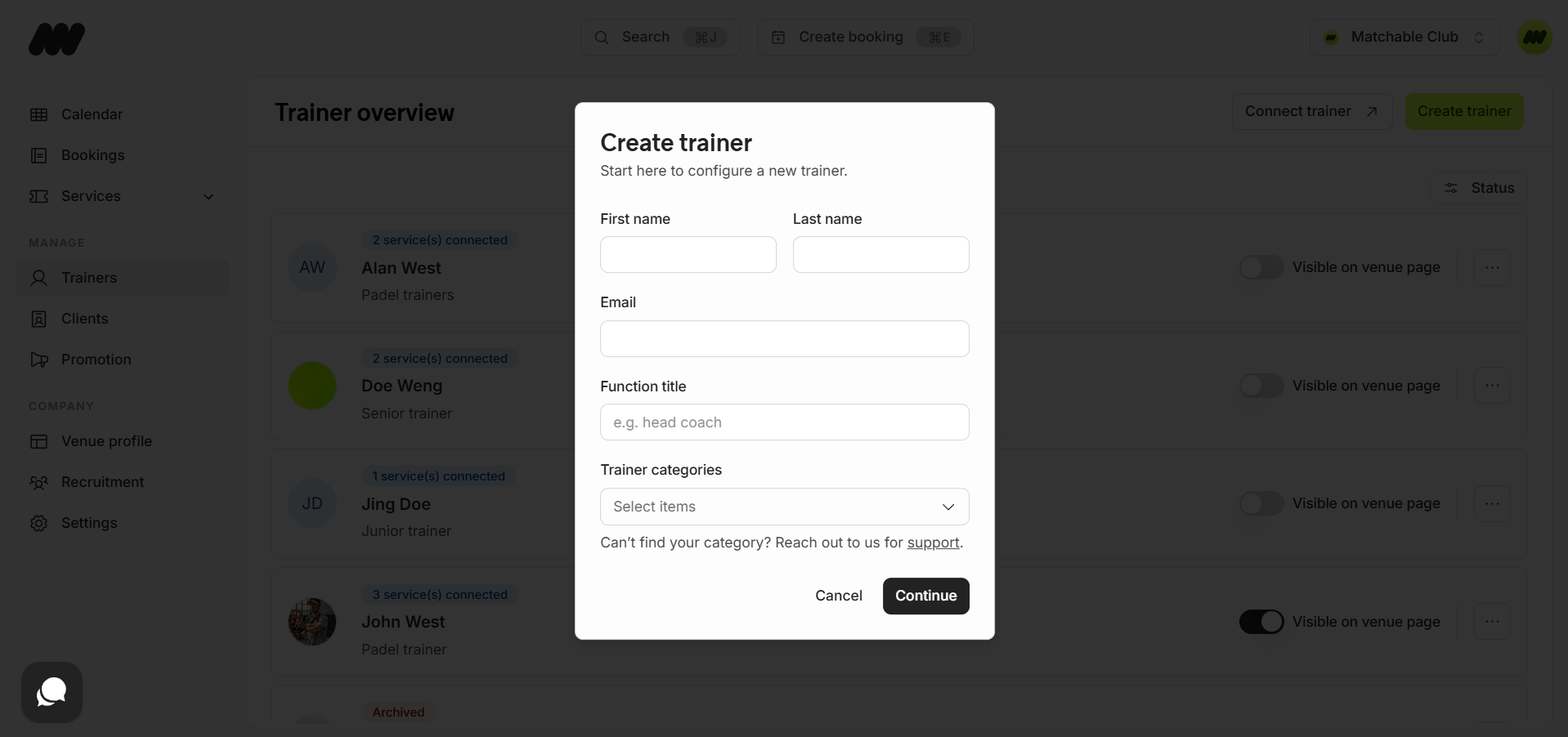
Click the three dots (…) next to a trainer to Edit Profile.
Once in a trainer’s profile, you will find five tabs:
General | Bookings | Availability | Holidays | Trainer App
Complete all essential information to optimize client attention.
Services:
Assign the trainer to one or more services.
Profile Details:
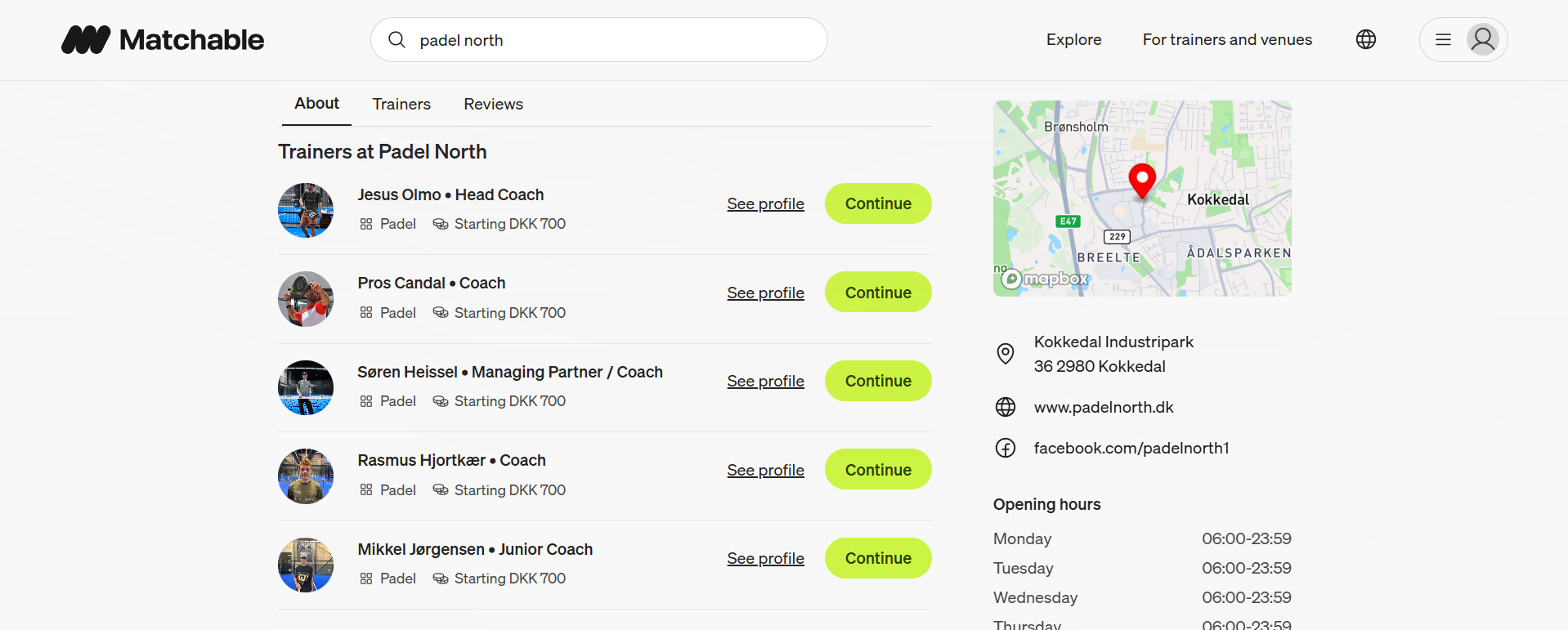
Add a profile picture (shown to clients in search).
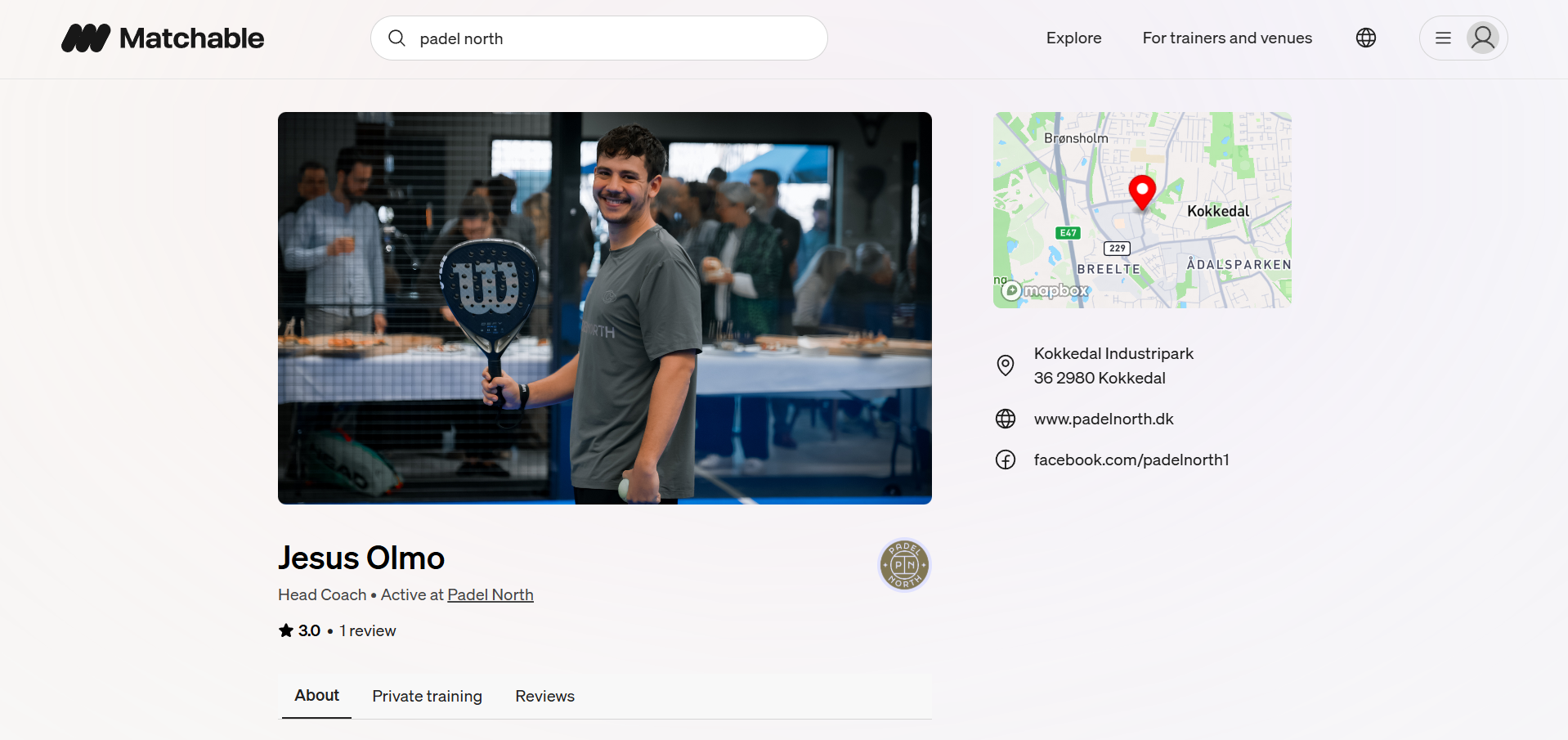
Add a banner image (displayed when the trainer is selected).
Fill in biography, specializations, and languages spoken.
Calendar Color:
Select a color to represent the trainer in the schedule.
Marketplace & Venue Profile:
Toggle visibility for the marketplace and venue page.
Once enabled, the trainer appears in search results.
View all bookings for the trainer.
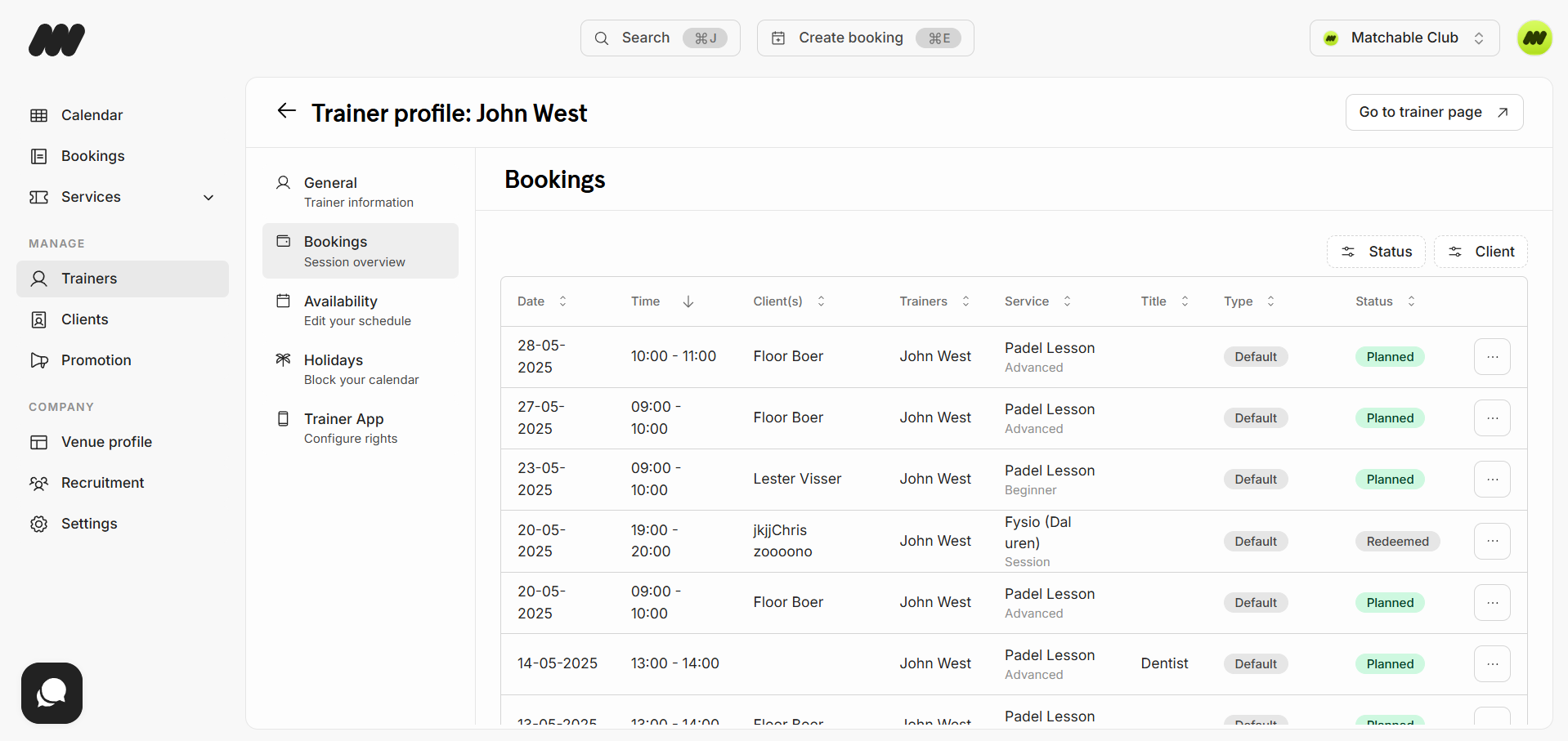
Click the three dots (…) next to a booking to edit:
Redeemed: Booking completed
Unplanned: Booking appears in the client’s profile for rescheduling (future bookings only)
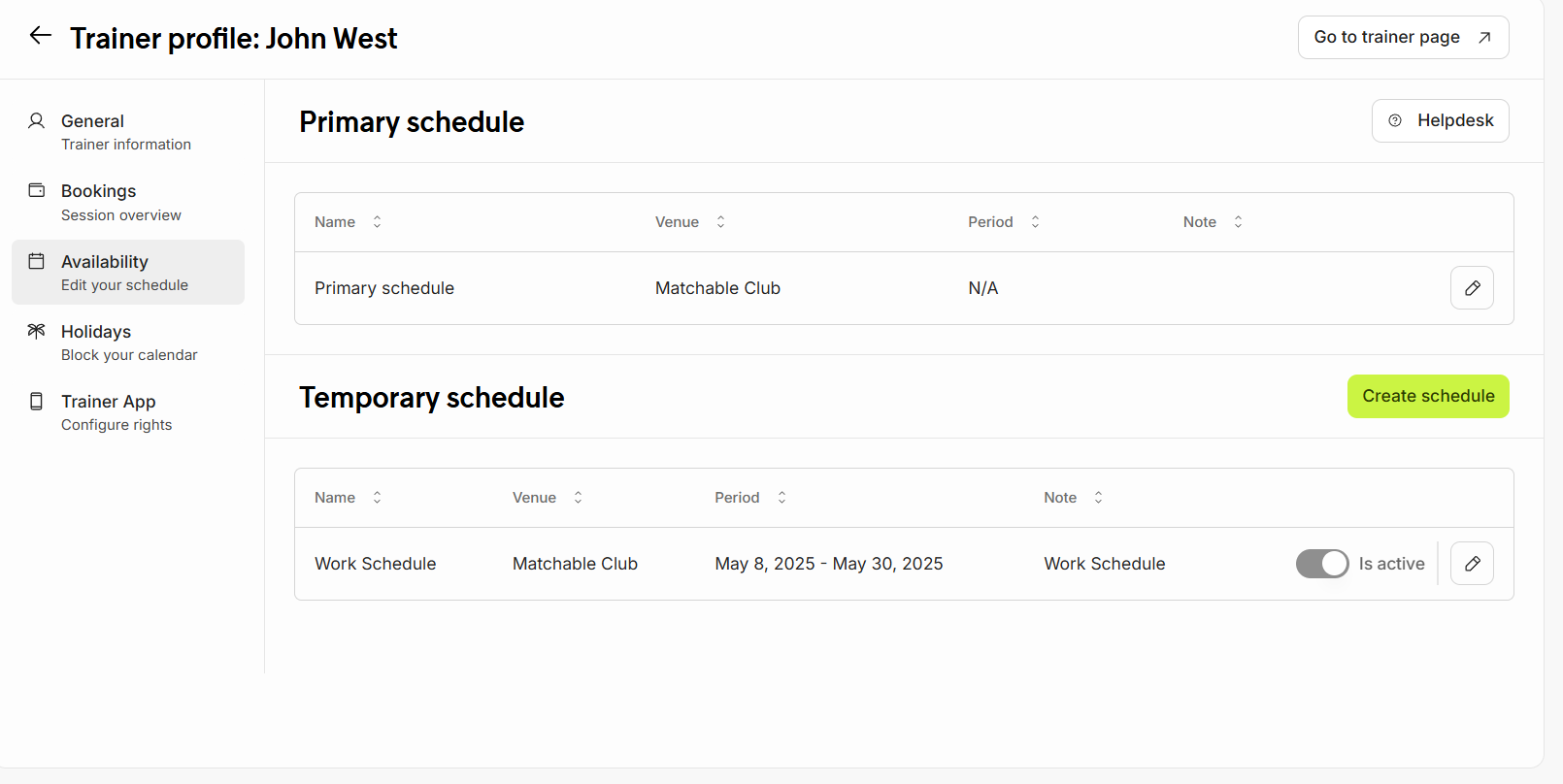
Edit or create schedules using the pen icon or ‘Create Schedule’.
Primary Schedule: Trainer’s regular availability
Temporary Schedule: Overrides the regular schedule
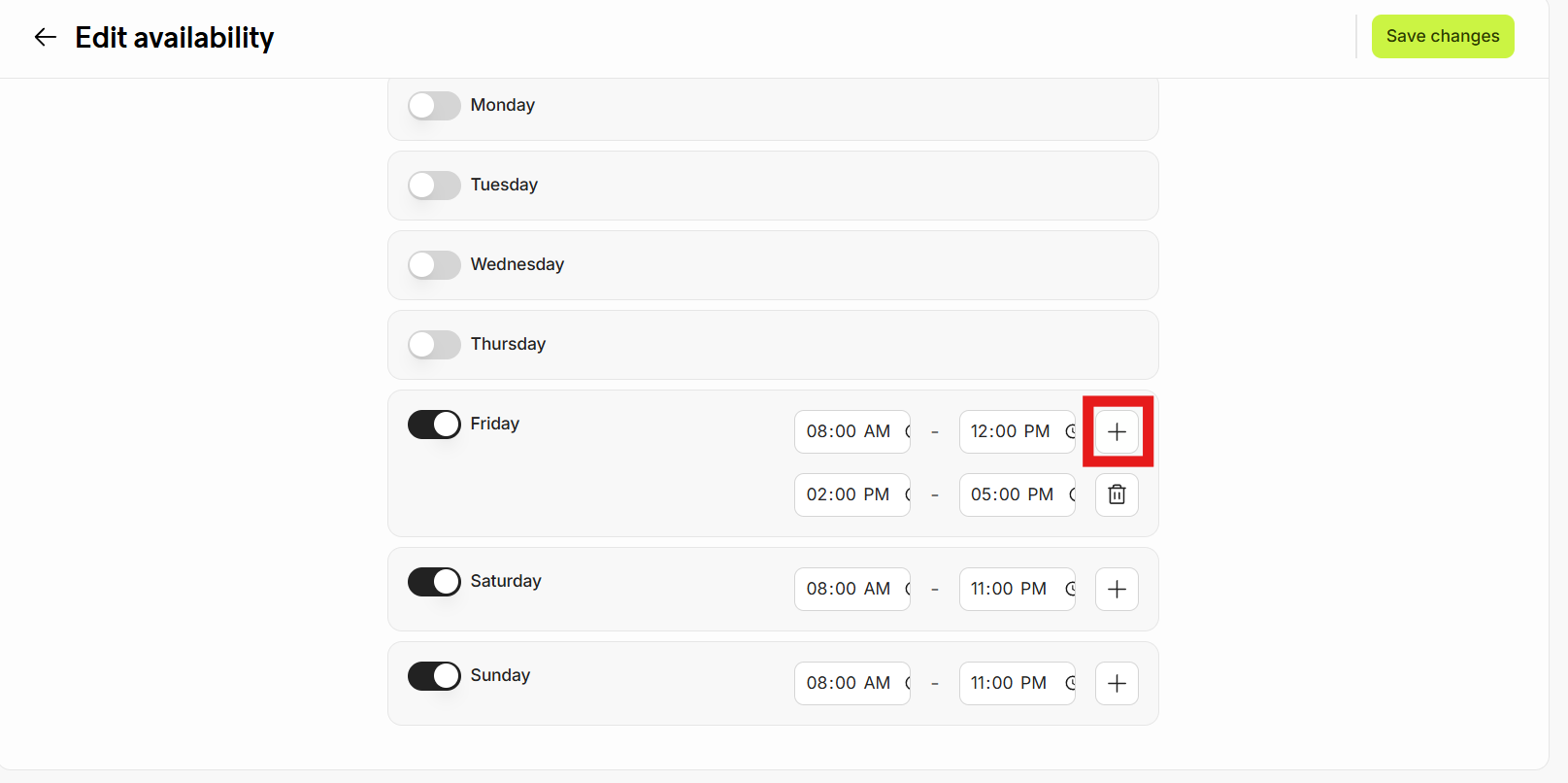
Add specific hours by clicking the + icon.
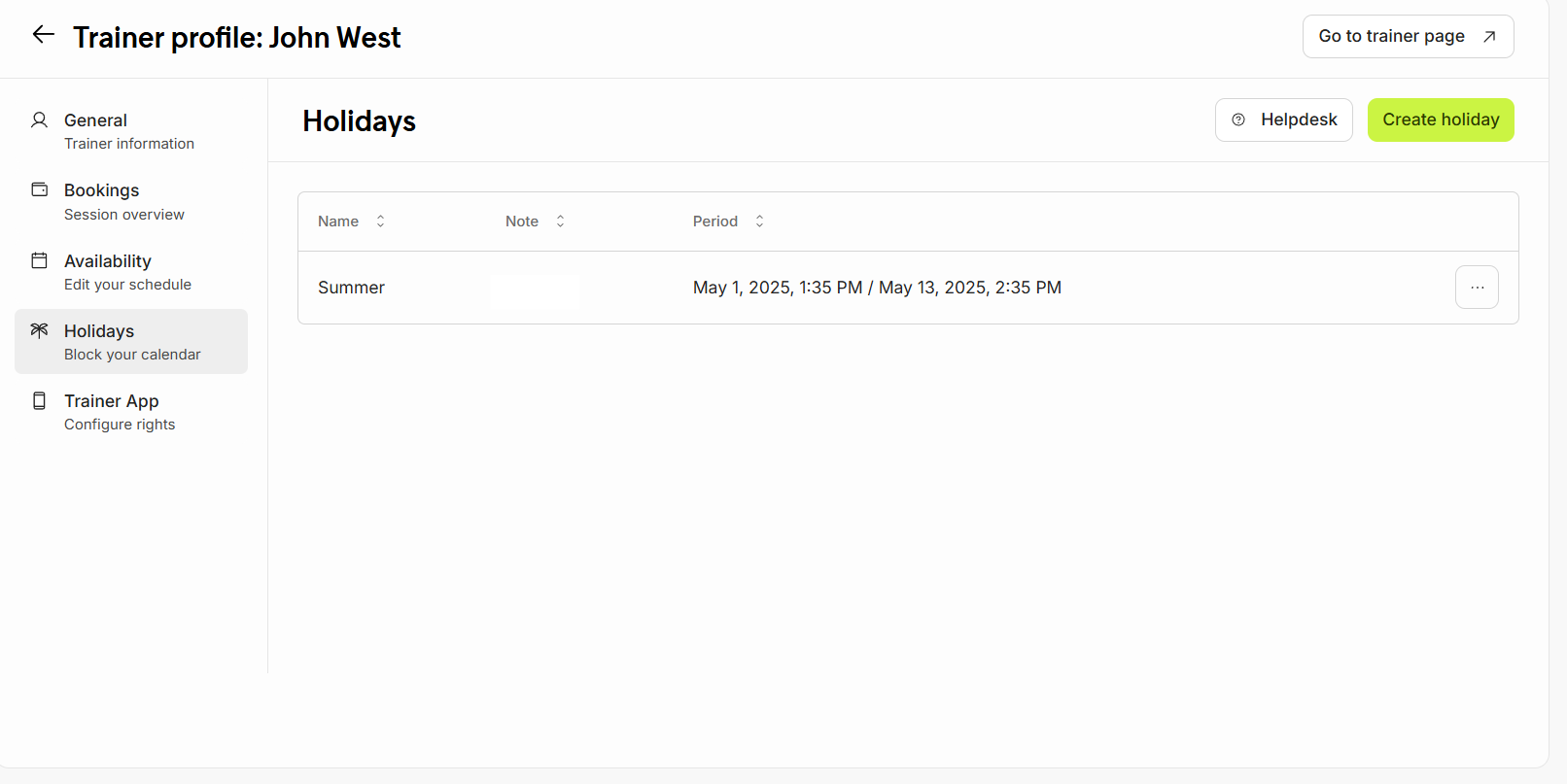
Holidays override any schedule.
Clients see the trainer as unavailable during the holiday period.
The holiday title or details are not visible to clients.
Make sure your trainers also download the Matchable Trainer App from the Google Play Store or App Store.
