
Subscribe to a calendar URL in Google Calendar to view external events, like venue bookings or trainer schedules, alongside your personal calendar. Updates to the external calendar will appear automatically, no further action is needed.
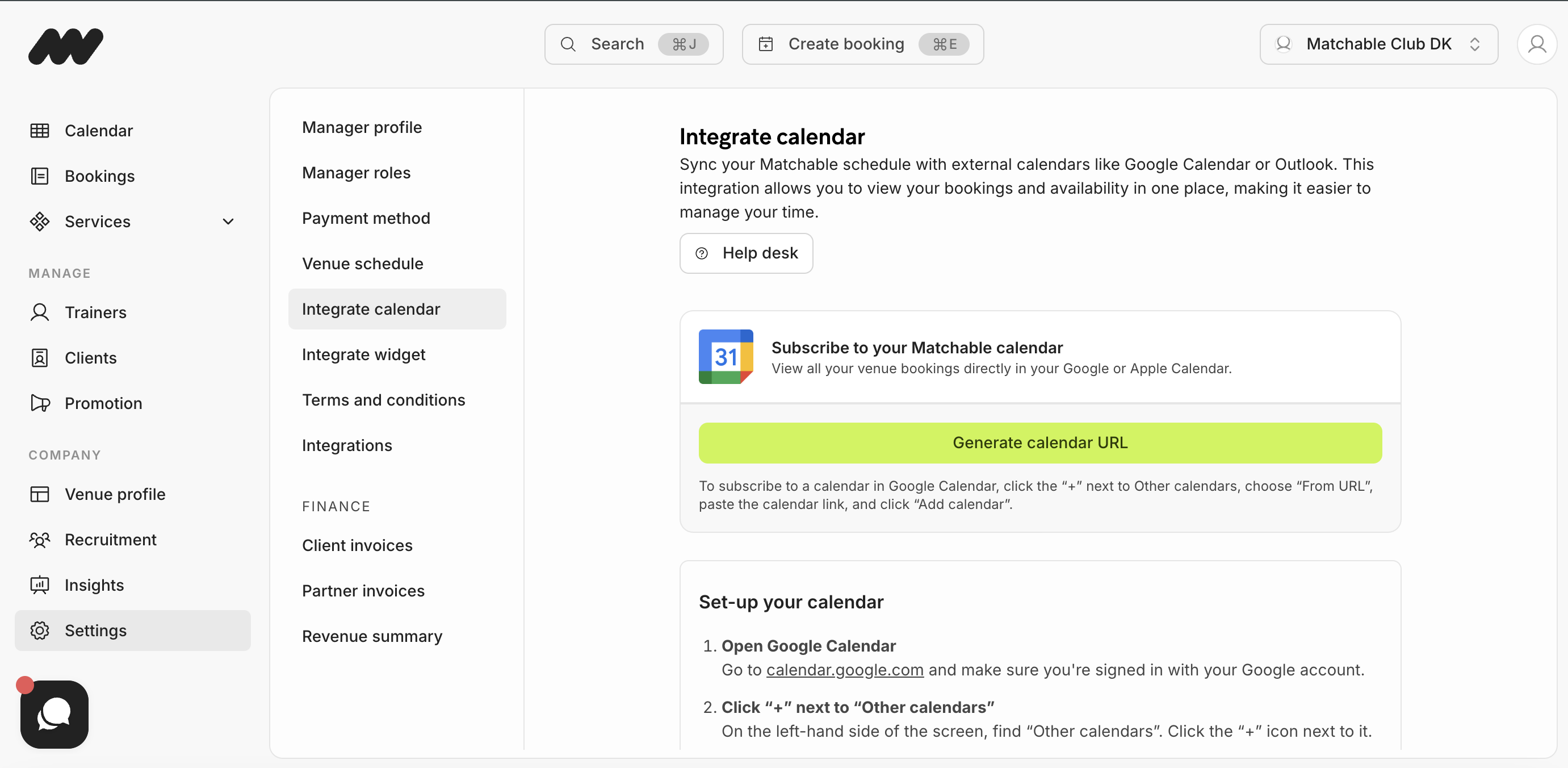
Go to the Settings menu on the left side and choose Integrate calendar.
Click on the green button ‘Generate calendar URL’ and follow the next steps to set up your calendar.
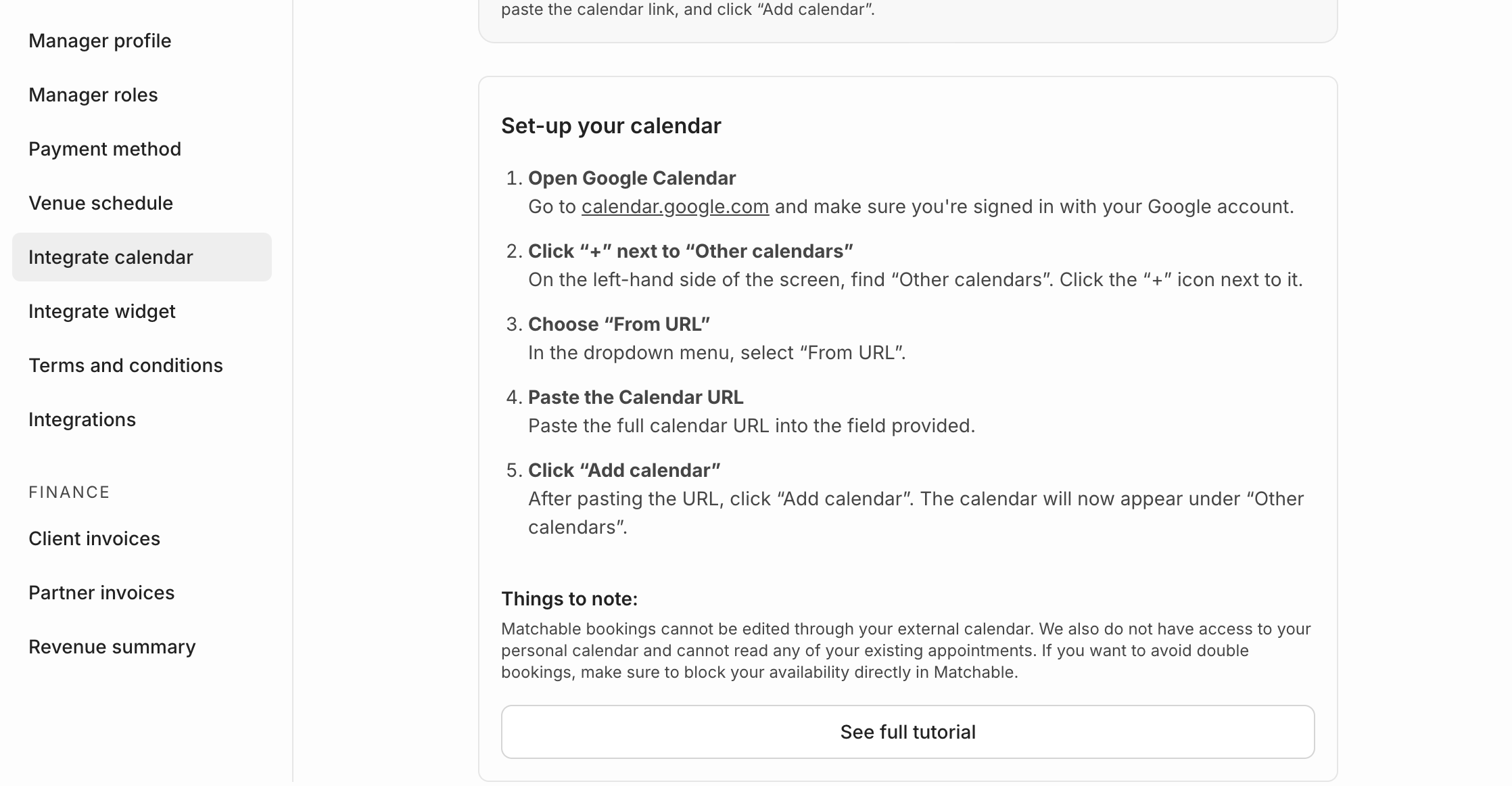
Step 1: Open Google Calendar
Go to https://calendar.google.com in your browser (Chrome, Firefox, Safari).
Sign in with your Google account if needed.
Step 2: Find “Other calendars”
On the left sidebar, look for “Other calendars” below your main calendars.
Step 3: Add a Calendar by URL
Click the plus (+) icon next to “Other calendars.”
Select “From URL” from the dropdown menu.
Paste the calendar URL (usually ends with
.ics) into the field.Click “Add calendar.”
Step 4: Wait for the Calendar to Appear
The subscribed calendar will show under “Other calendars.”
Events will sync automatically and update when the original calendar changes.
Step 5: Customize Display (Optional)
Click the calendar name to toggle visibility.
Click the three dots next to the name to change color or notifications.
Troubleshooting
Check the URL for typos or permissions — some calendars must be public.
Refresh the page or log out and back in if the calendar doesn’t appear immediately.