With request bookings a client doesn't book a time straight away. They ask for one, you reply, and the session is only booked once they've paid. Use it for trainers whose agenda isn't fully in Matchable, or when you want to check a request before it lands in the calendar. A request is always for one session.
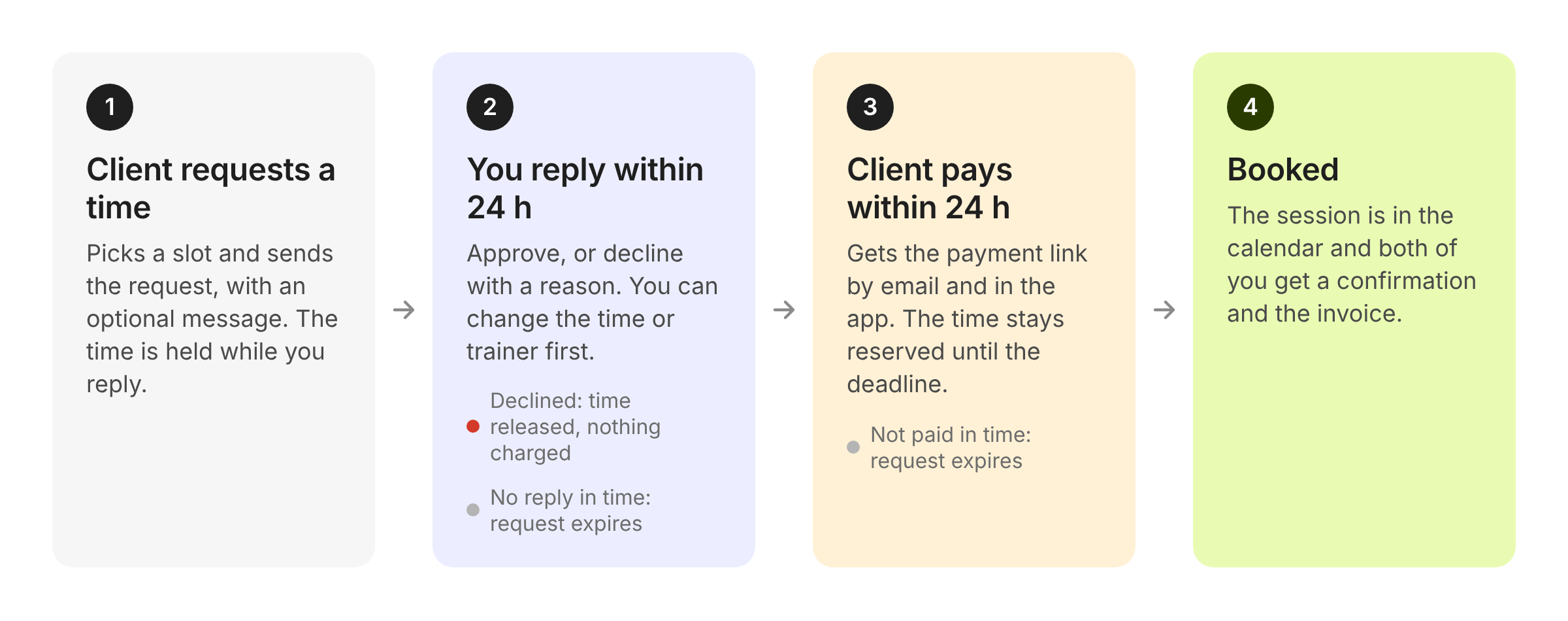
The client picks a time on your storefront or the trainer's profile and sends a request, with an optional message. The time is held for them while you reply.
You approve or decline within 24 hours. If nobody replies in time the request expires and the time is released.
After approval the client gets a payment link by email and in their account, and has 24 hours to pay. Nothing is charged before that.
Once paid, the session is booked. It shows in the calendar and both of you receive the confirmation and the invoice.
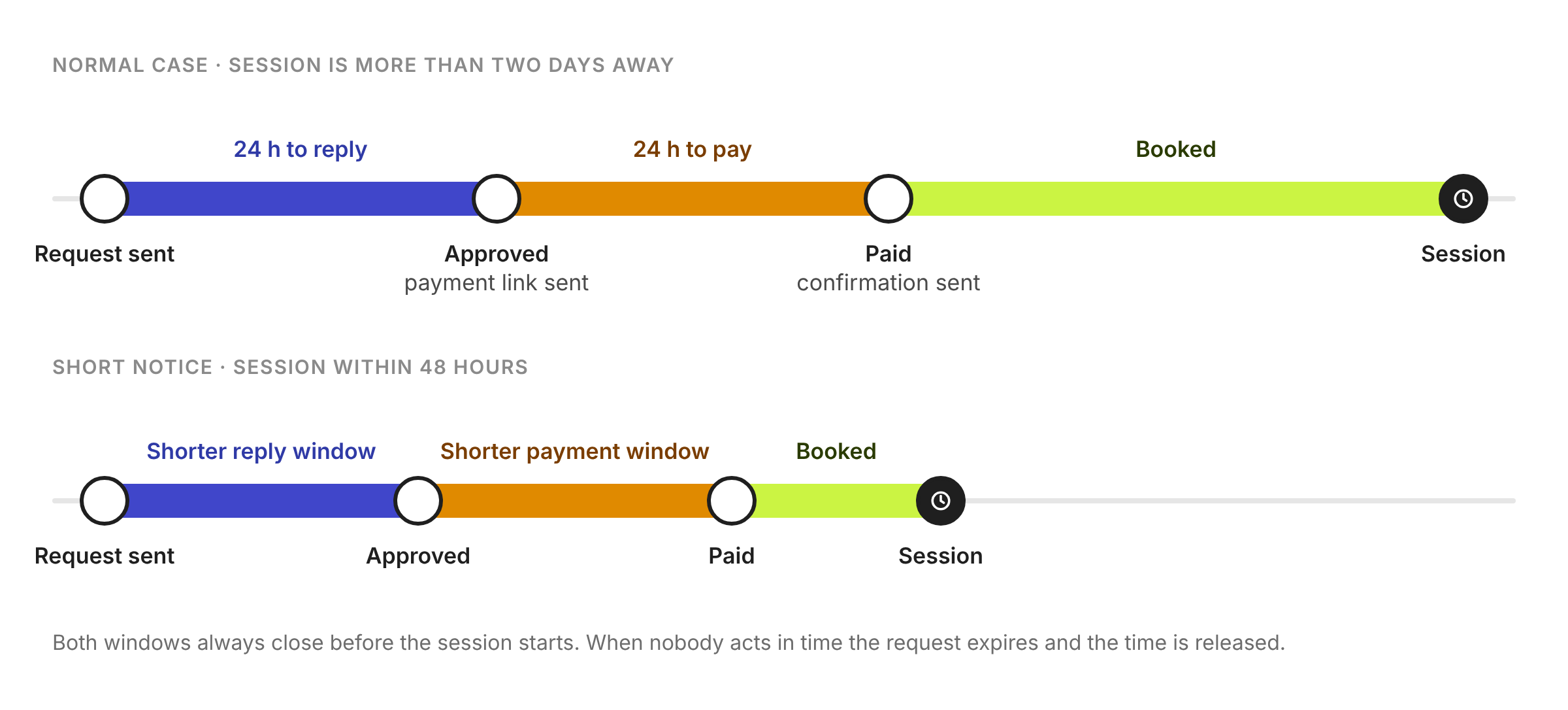
Both windows are 24 hours. When the session is sooner than that, they are cut short so everything is settled before it starts. You get a reminder halfway through the reply window, and the client gets an automatic payment reminder before their deadline. From the request page you can also send a reminder yourself or copy the payment link.
Open requests are listed under Requests in the manager, with the time left to reply. Each request page shows:
the status, with the actions for that moment
the requested session: time, trainer, service, location and price
the client, with the message they sent
the messages between you and the client
a history of what happened and when
Approve opens a short confirmation where you can add a message for the client; it goes into their email. Decline asks for an optional reason, which the client sees. Nothing is charged on a decline and the time is free again.
If the service is a free trial, approving confirms the session right away. There is nothing to pay.
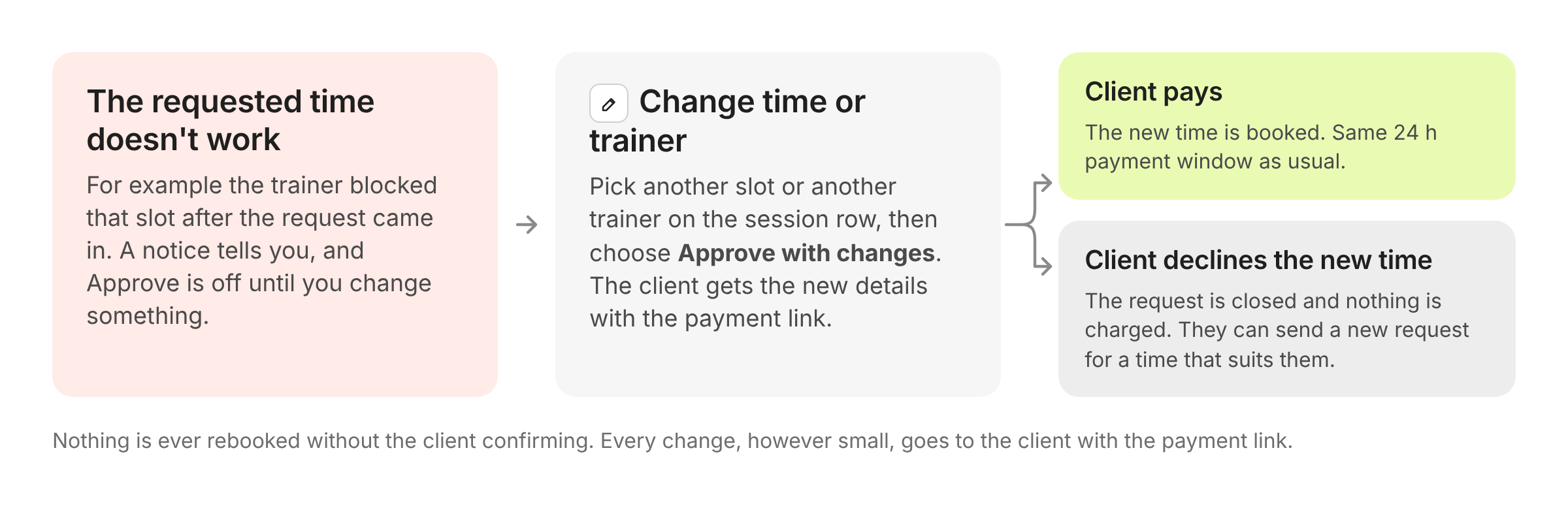
When the requested time doesn't work, for example because the trainer blocked it after the request came in, the request page shows a notice and Approve is switched off. Use the pencil on the session row to pick another time or another trainer, then choose Approve with changes. The client gets the new details together with the payment link and confirms by paying.
If the new time doesn't suit them they can decline, which closes the request. They can always send a new request for a time that does work. Once a request is approved, the time can't be changed anymore.
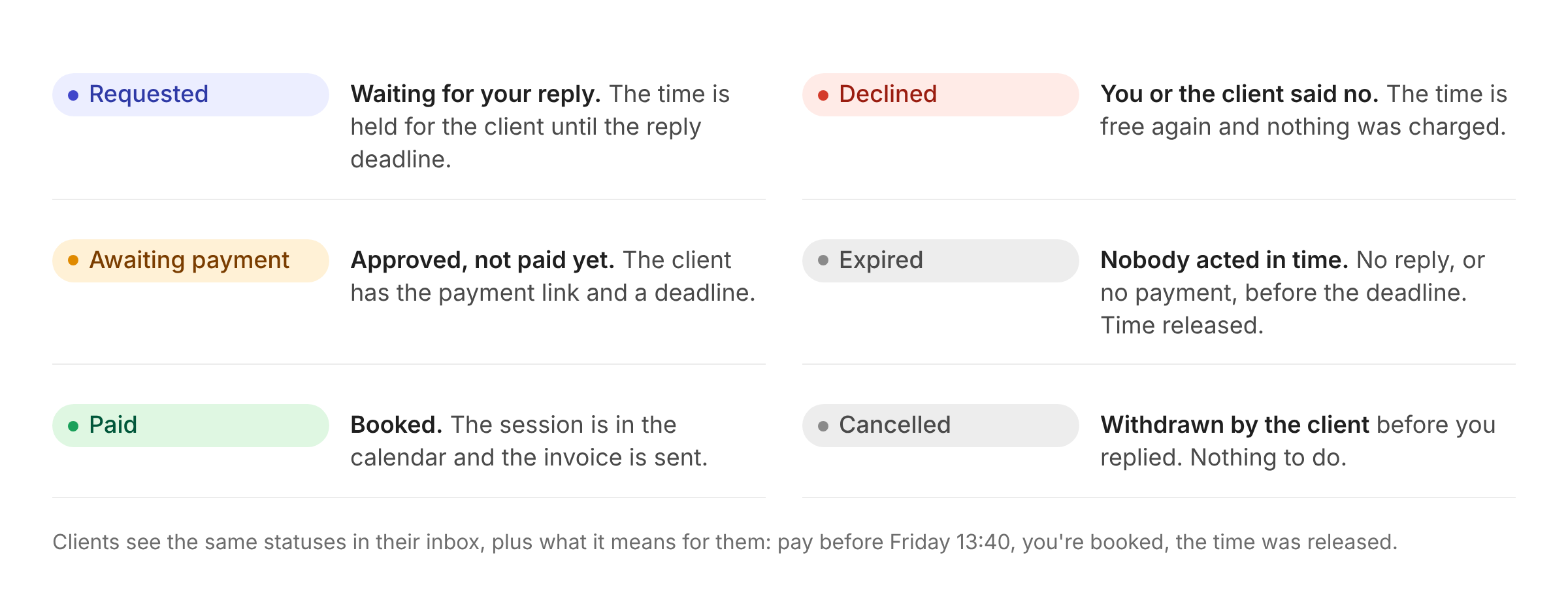
Every request has one status, shown in the list and at the top of the request page:
Requested: waiting for your reply, the time is held until the reply deadline
Awaiting payment: approved, the client has the payment link and a deadline
Paid: booked, in the calendar, invoice sent
Declined: you or the client said no, time released, nothing charged
Expired: no reply or no payment before the deadline, time released
Cancelled: withdrawn by the client before you replied
Clients follow their request in the inbox of their account and by email:
Request sent: a confirmation with the reply deadline, and that nothing is charged until then.
Approved: the payment link with the payment deadline, plus your message if you added one.
Booked: the confirmation and the invoice.
Declined or expired: that the time was released and nothing was charged, with your reason if you gave one.
Request bookings are set per trainer in the private service: instead of instant booking, choose On request. Clients then see "On request" on that trainer's times and send a request instead of paying straight away.
